Dine In Time User Guide
Your Recipes. Your Plan. Your Table.
Everything you need to discover recipes, build meal plans, shop with less stress, prep ahead, cook with confidence, and share favorite plans with family and friends.
User Guide
Welcome to Dine In Time!
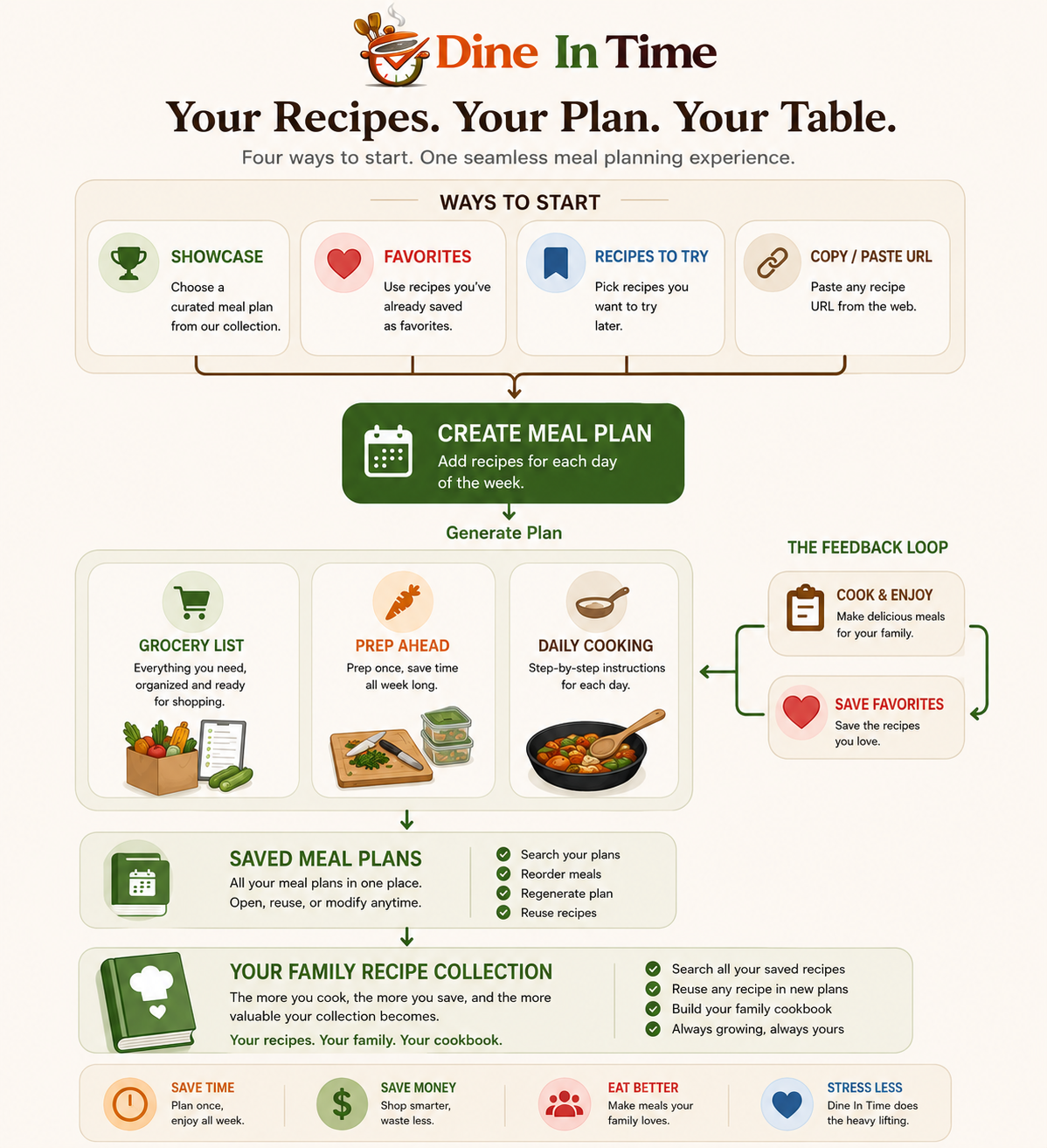
Dine In Time helps you organize recipes you already love into complete meal plans.
Whether you're starting with recipes from your favorite websites, discovering curated meal plans, or building your own collection over time, Dine In Time brings everything together in one place.
Each Saved Meal Plan automatically includes:
- A Grocery List
- Prep Ahead steps
- Daily Cooking steps
Over time you'll build your own family recipe collection that can be reused again and again.
How Dine In Time Works
Every recipe follows the same simple journey.
Chapter 1
Discover
"Great meal plans begin with great recipes."
Recipes can come from many places, and Dine In Time is designed to help you bring them together in one organized collection.
Whether you're browsing curated meal plans, visiting your favorite recipe websites, searching the web for tonight's dinner, or importing a meal plan shared by a friend, every recipe becomes part of your growing recipe collection.
Sources of Inspiration
- Meal Plan Showcase
- Your favorite recipe websites
- Google searches
- Your favorite recipe creators
- Shared from friends & family
- Pinterest saved recipe collections/food bloggers
Coach Tip
Don't start planning your week. Start collecting great recipes.
The best meal plans are built over time. Whenever you find something that looks delicious, save it. By the time you're ready to plan next week, you'll already have plenty of great choices.
Chapter 2
Save
"Great meal plans don't begin on Sunday afternoon. They begin the moment you discover a recipe you want to make."
One of the biggest advantages of Dine In Time is that you don't have to plan an entire week of meals all at once.
Instead, simply save recipes whenever inspiration strikes.
Whether you're browsing your favorite recipe website, exploring the Meal Plan Showcase, or discovering a new family favorite, every recipe you save becomes part of your growing recipe collection, ready whenever you're ready to build your next meal plan.
Meal Plan Showcase
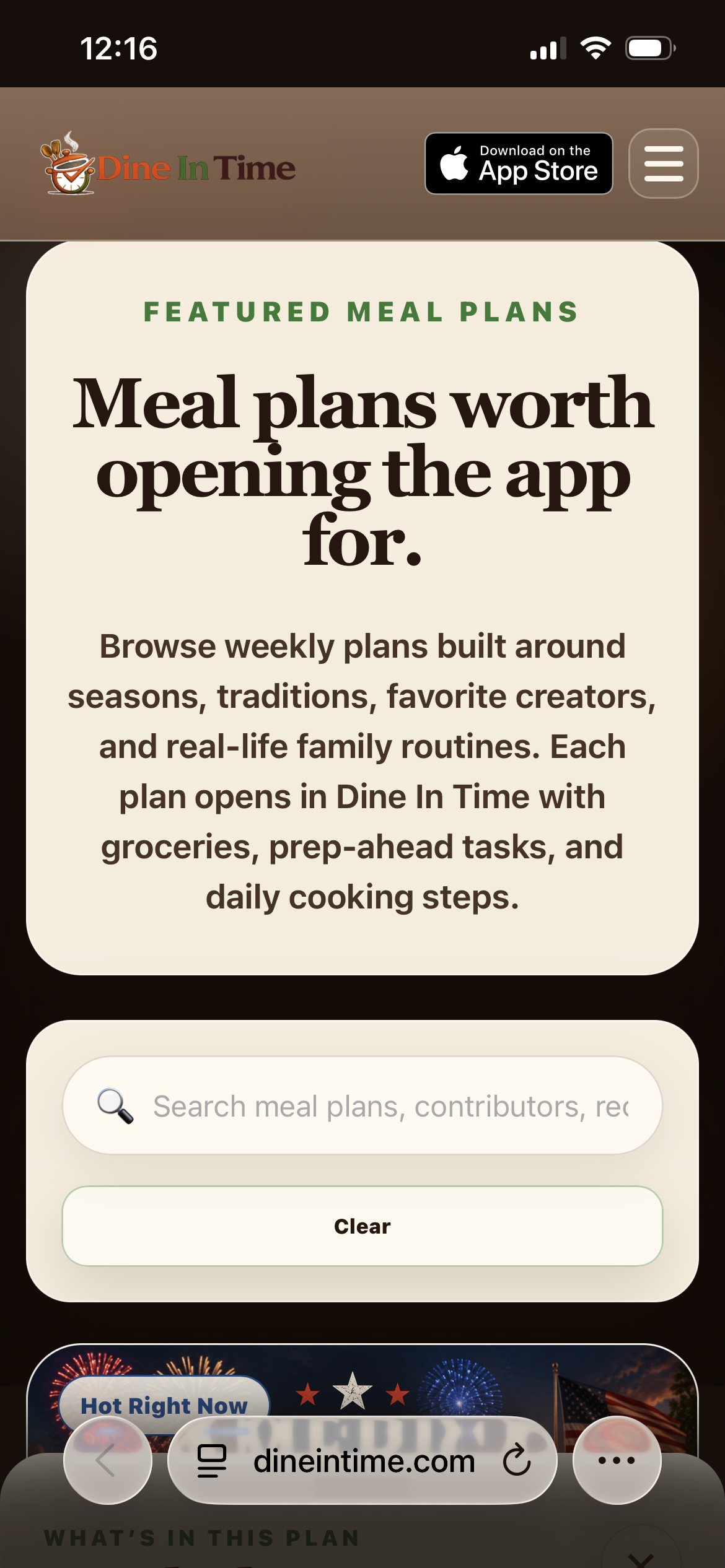
The easiest way to get started is by importing from the Meal Plan Showcase.
Meal Plan Showcases are curated collections of recipes built around a theme, season, holiday, or creator. Each plan includes everything you need for the week:
- Daily meals
- A Grocery List
- Prep Ahead steps
- Daily Cooking steps
With a single tap, the entire plan is added to your collection and is ready to cook, customize, or reuse.
Whether you're looking for quick weeknight dinners, summer favorites, holiday meals, or game day recipes, the Meal Plan Showcase is a great source of recipe inspiration.
Save from the Web
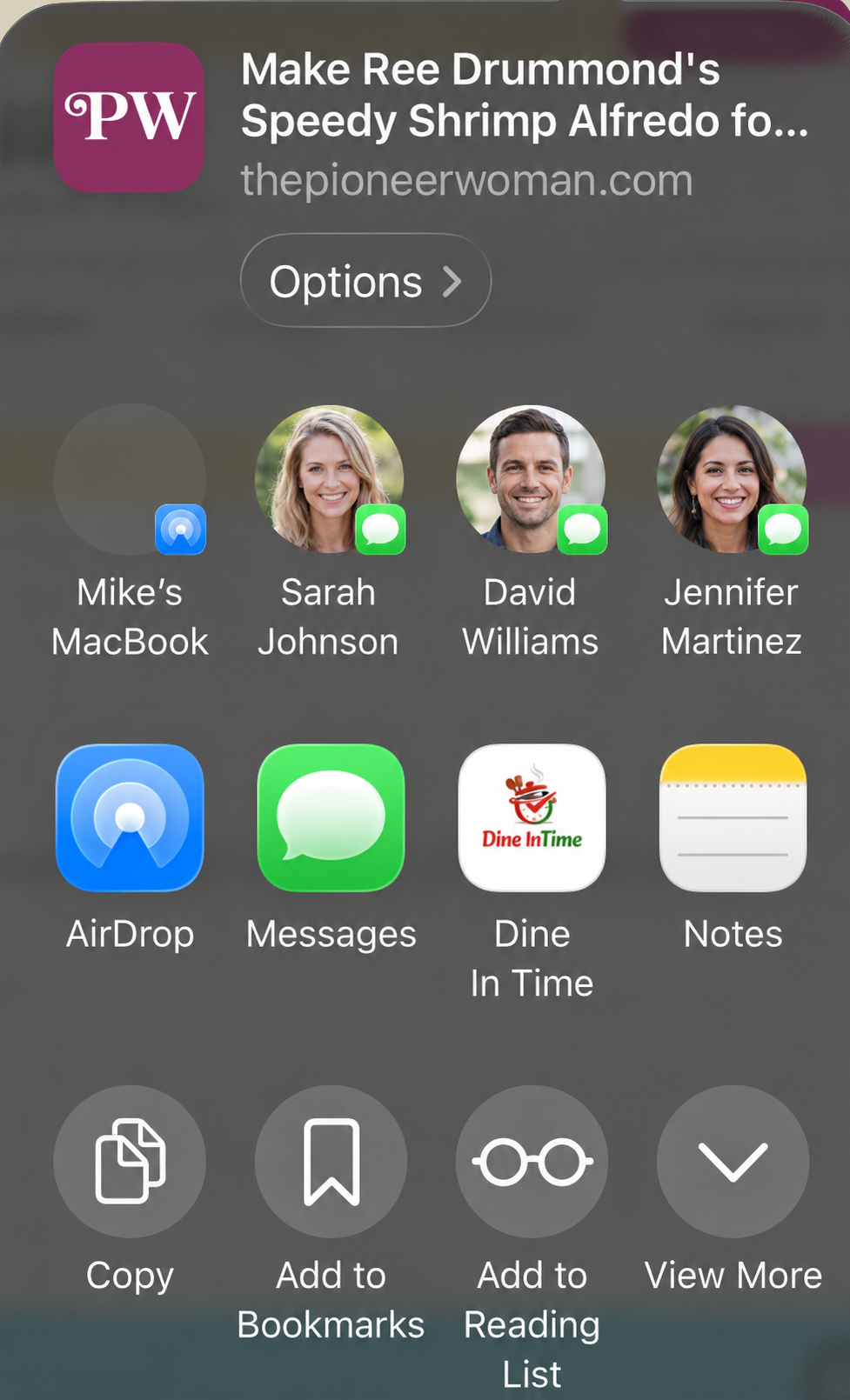
Found a recipe while browsing?
Save it without interrupting what you're doing.
Simply:
- Open the recipe on your favorite recipe website.
- Tap the Share button.
- Select Dine In Time.
- The recipe is automatically saved to Recipes to Try for use later.
The next time you're ready to build a meal plan, your saved recipes will already be waiting for you.
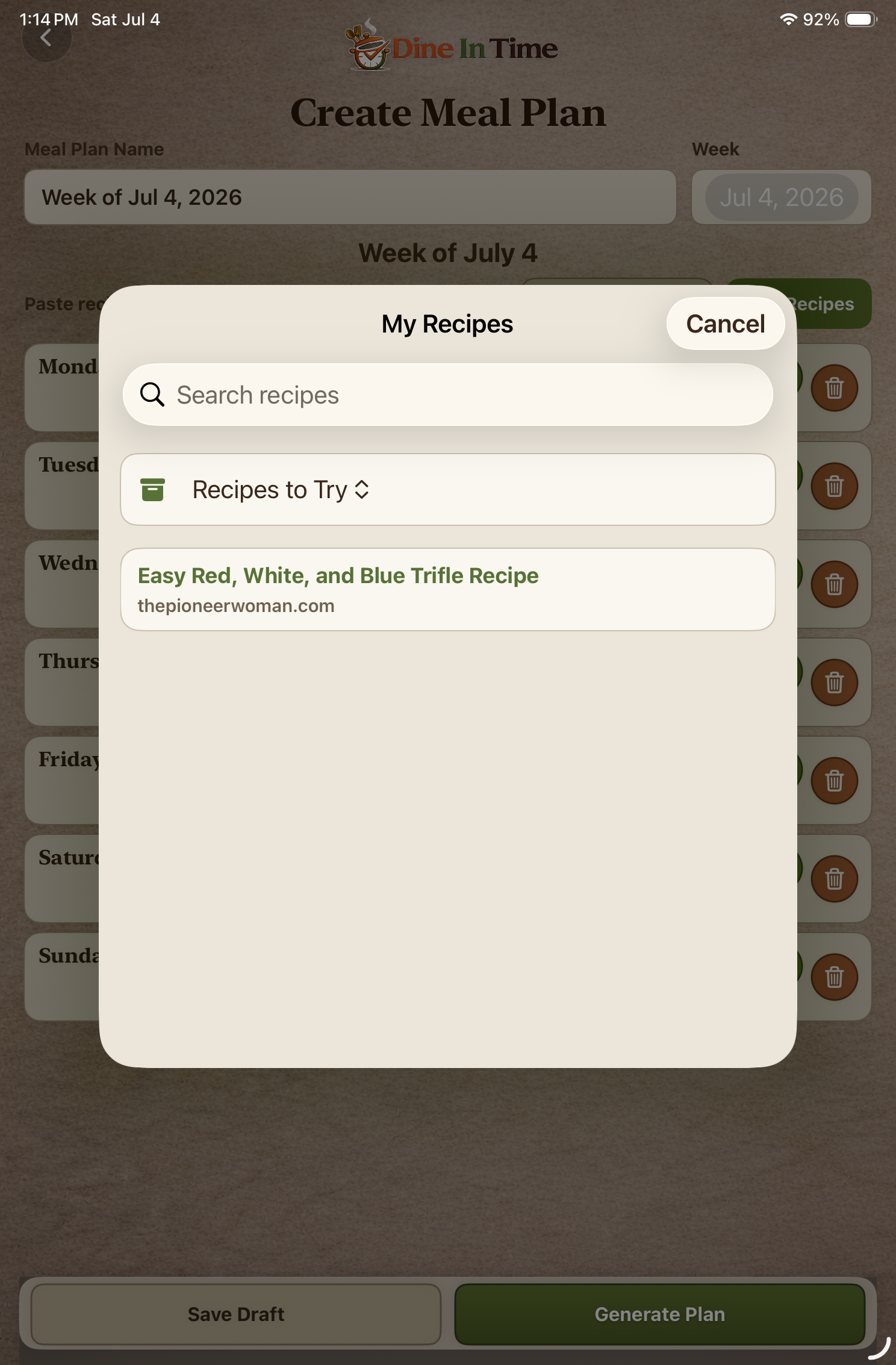
Think of Recipes to Try as your personal recipe inbox.
Every recipe you save from the web is automatically stored here until you're ready to use it.
There's no pressure to decide when you'll cook it.
Just keep collecting recipes that look interesting.
Over time, Recipes to Try becomes a growing collection of meal ideas, seasonal favorites, desserts, appetizers, and special occasion recipes.
When you're ready to create a meal plan, simply browse your collection and choose the recipes you want to add.
Nothing gets lost.
Nothing is forgotten.
Your next great meal is always waiting.
Coach Tip
You don't have to know when you're going to make a recipe.
If it looks delicious, save it. Build your recipe collection a few minutes at a time. Save one recipe during your lunch break. Another while watching TV. A few more over the weekend.
Planning becomes much easier when you're choosing from recipes you've already collected instead of trying to remember where you saw them.
When it's time to plan next week's meals, you'll already have plenty of great options waiting for you.
Chapter 3
Favorites
"Save the recipes you'll want to make again."
Favorites make it easy to find recipes you've already enjoyed and quickly reuse them when creating future meal plans.
Whenever you discover a recipe that's worth making again, simply add it to your Favorites.
Two Ways to Add a Favorite
You can favorite a recipe from two different places in Dine In Time.
Option 1 — From Daily Cooking
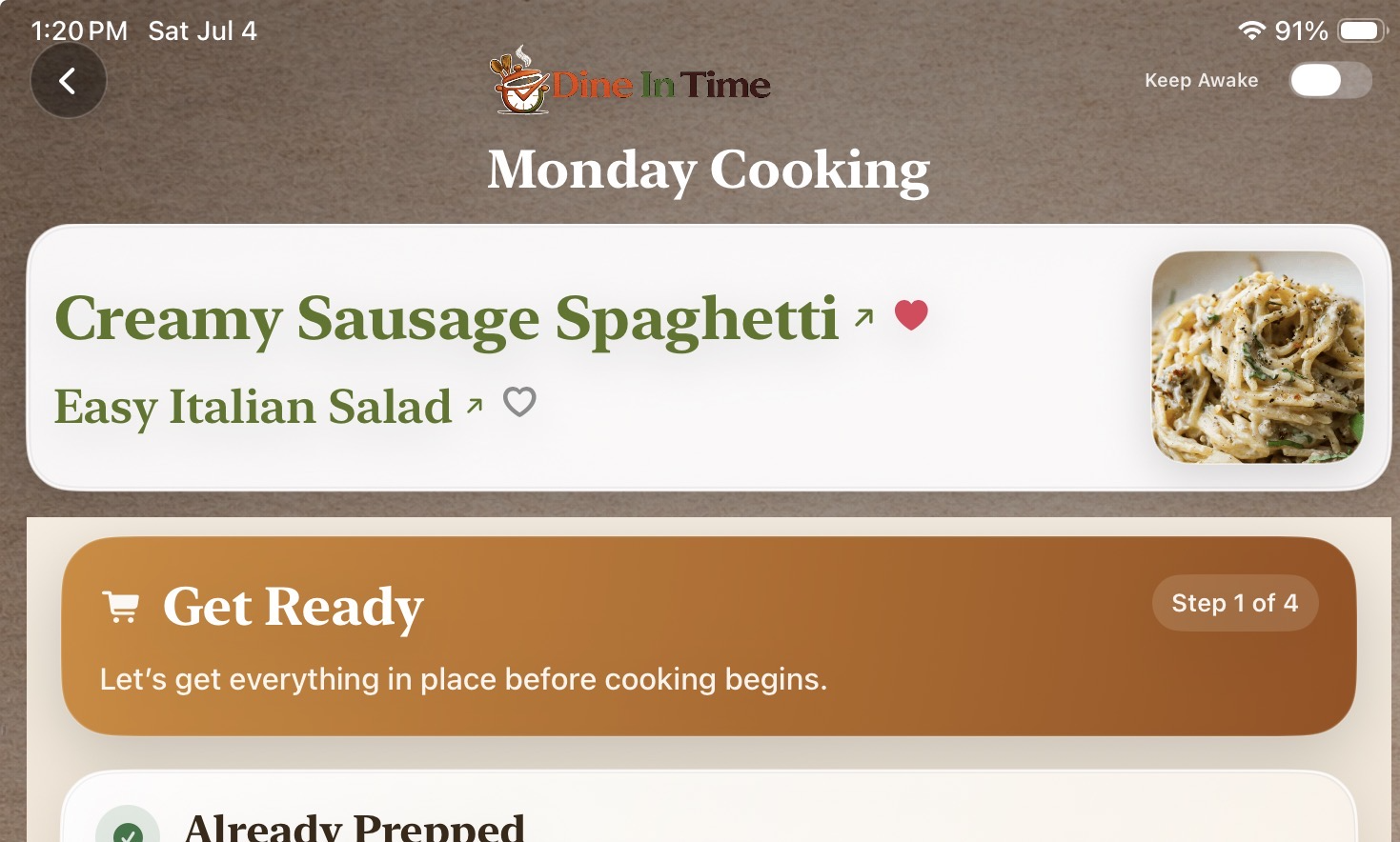
After preparing a meal, tap the ❤️ Favorite button.
- Open Daily Cooking.
- Select the recipe you're preparing.
- Tap the ❤️ Favorite button.
- The recipe is immediately added to your Favorites collection.
Option 2 — From Saved Meal Plans
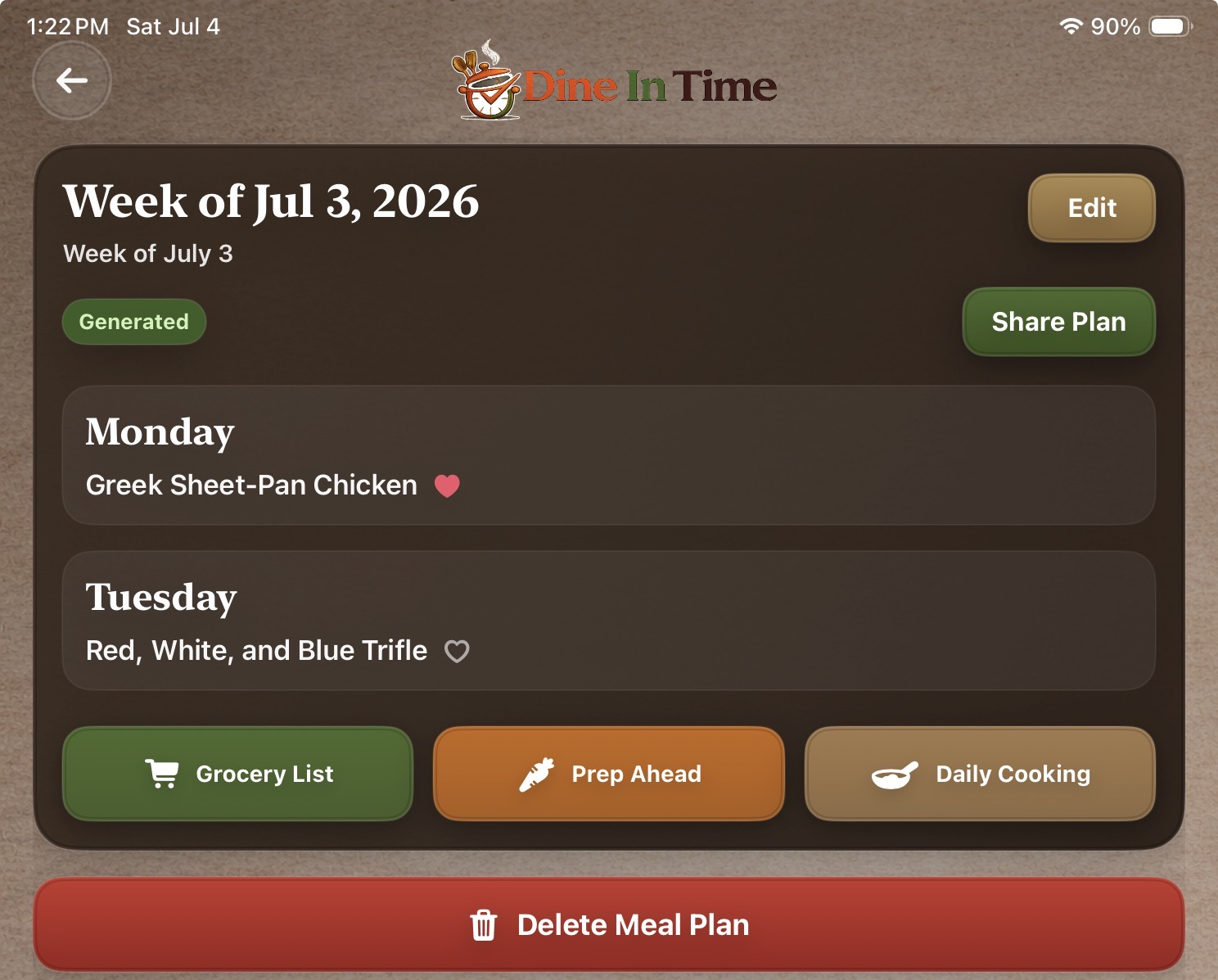
You can also favorite recipes from any Saved Meal Plan.
This is useful when reviewing past meal plans or adding favorites after the week is complete.
- Open Saved Meal Plans.
- Select a meal plan.
- Tap the ❤️ Favorite button next to the recipe you'd like to save.
The recipe is immediately added to your Favorites collection.
Using Favorites
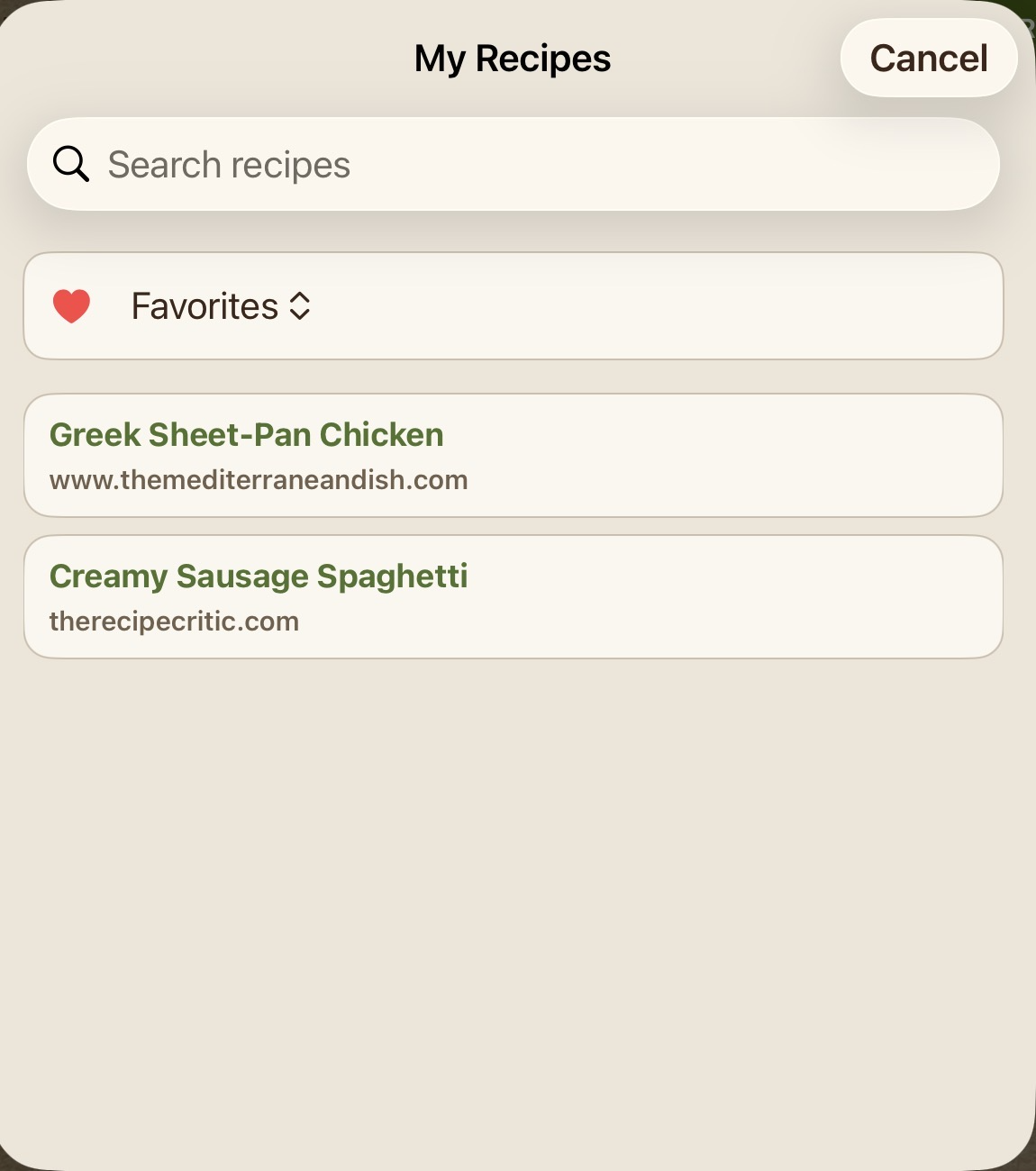
When creating a new meal plan, tap
 My Recipes
to browse recipes you've previously saved.
My Recipes
to browse recipes you've previously saved.
You can:
- Add a single favorite recipe to your meal plan.
- Build an entire meal plan from Favorites.
- Mix Favorites with Recipes to Try.
- Combine Favorites with Meal Plan Showcase.
Favorites are always available whenever you create a new meal plan.
Managing Favorites
If your preferences change, you can remove a recipe from your Favorites at any time by
swiping left and tapping the
 Delete button.
Removing a recipe from Favorites does not remove it from existing meal plans.
It simply removes it from your Favorites collection.
Coach Tip
Tap the
My Recipes
button whenever you're creating a meal plan.
From there, you can quickly switch between Favorites and Recipes to Try to add recipes you've previously saved.
Chapter 4
Organize
"Turn your recipe collection into a complete meal plan."
Now that you've started saving recipes, you're ready to organize them into a meal plan.
Creating a meal plan is simple. You choose the recipes you want to cook, and Dine In Time organizes the grocery list, prep ahead steps, and daily cooking instructions for you.
Creating Your First Meal Plan
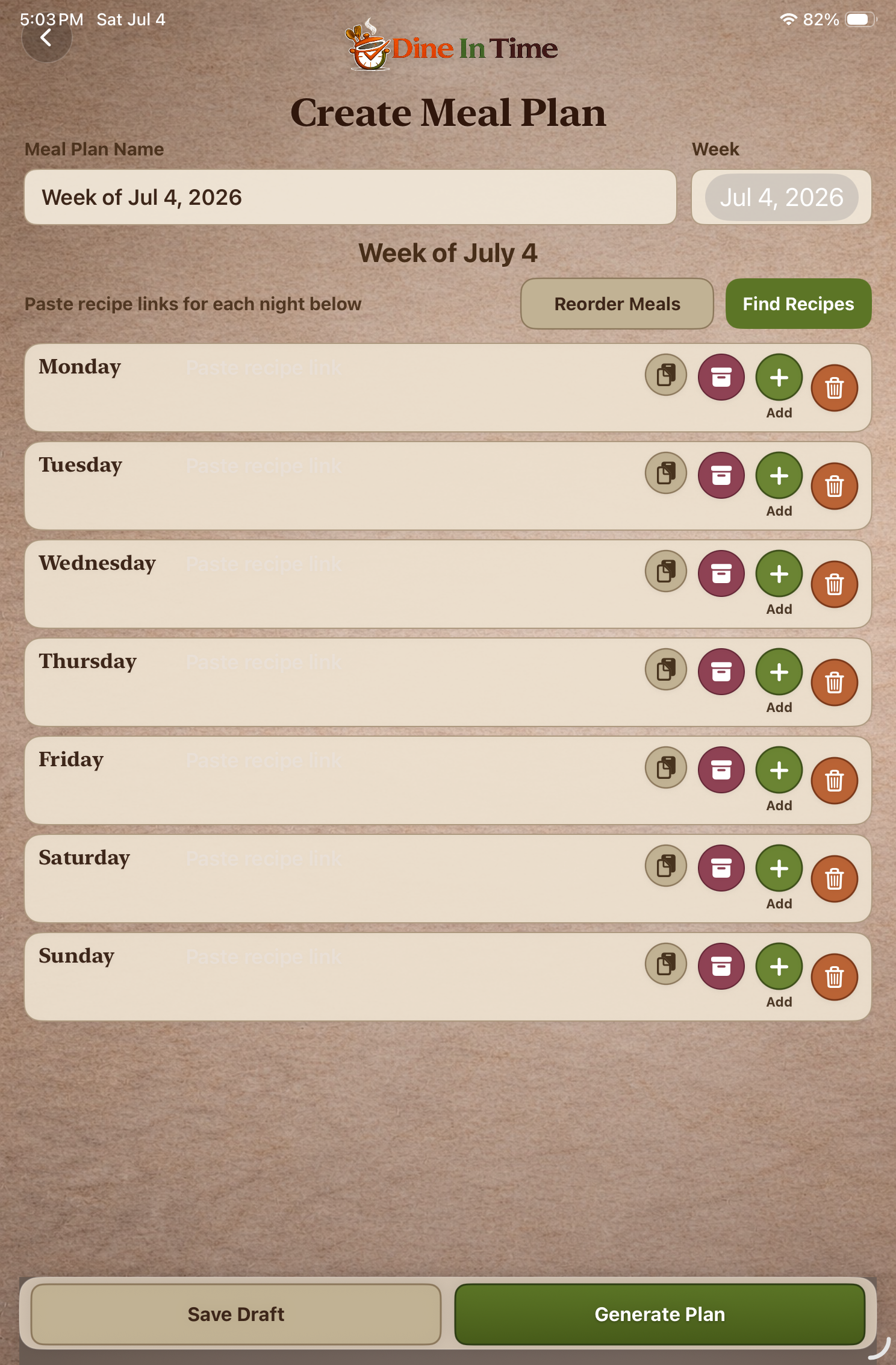
From the Home screen, tap Create Meal Plan.
You'll begin with an empty weekly calendar where you can add recipes to each day.
There are no rules. You can build a traditional Monday through Friday meal plan, plan an entire week, or create a menu for a special occasion.
Three Ways to Add Recipes
Every meal plan starts by adding recipes. You can mix and match recipes from any of these sources.
Quick Start
The fastest way to build a meal plan is:
- Tap Create Meal Plan.
- Add recipes from Favorites, Recipes to Try, or Paste.
- Repeat until your meal plan looks right.
- Tap Generate Meal Plan.
- Review your Grocery List, Prep Ahead, and Daily Cooking.
Option 1 — Add Recipes from Favorites
Use this option when you want to cook recipes you've already made and loved.
- Tap the
My Recipes button.
- Select the Favorites tab.
- Tap the recipe you'd like to add.
The recipe is immediately added to your meal plan.
Option 2 — Add Recipes from Recipes to Try
Use this option when you've previously saved recipes from websites but haven't cooked them yet.
- Tap the
My Recipes button.
- Select the Recipes to Try tab.
- Tap the recipe you'd like to add.
The recipe is added to your meal plan, ready whenever you're ready to cook it.
Option 3 — Add a Recipe from a Website
Use this option when you find a new recipe while building your meal plan.
- Open the recipe in your web browser.
- Copy the recipe link.
- Return to Dine In Time.
- Tap Paste.
- The recipe is imported and added directly to your meal plan.
This is perfect when you discover a recipe you want to cook right away instead of saving it for later.
Mix and Match Recipes
Your meal plan does not have to come from only one place.
You might build a plan using family favorites, recipes you saved to try later, and a brand new recipe you just found online.
Mix and match recipes from any source to build the meal plan that works best for your family.
Adding Multiple Recipes to the Same Day
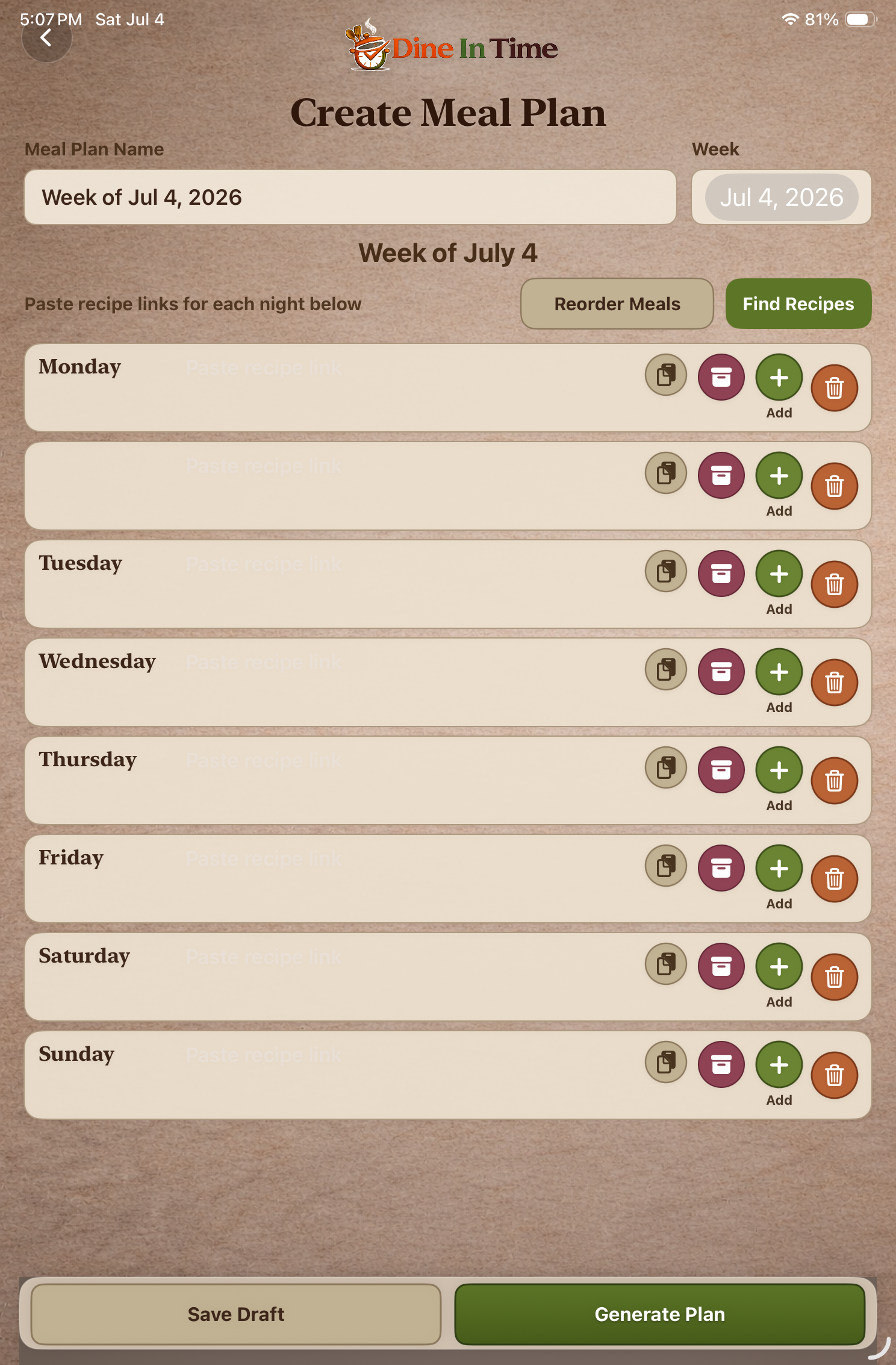
Some meals include more than one recipe.
Tap the
 button on any day to add another recipe.
For example, you might add a main dish, side dish, salad, dessert, or appetizer to the same day.
Tap the
 button to remove a recipe from that day.
Review Your Meal Plan
Before generating your meal plan, take a moment to review everything.
You can:
- Add recipes.
- Remove recipes.
- Add multiple recipes to the same day.
- Change the order of meals.
Your work is automatically saved while you build your plan.
Reordering Recipes
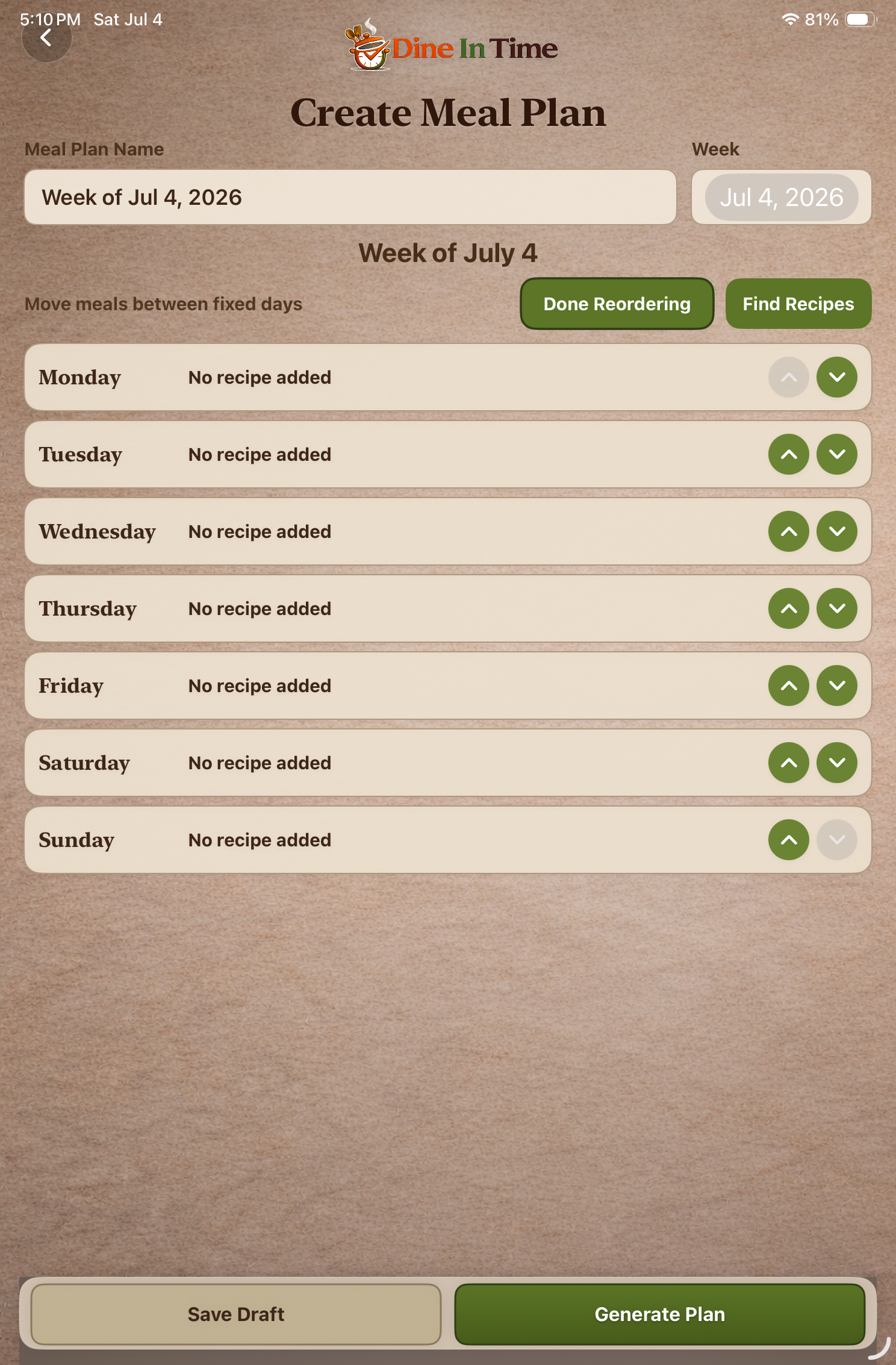
Plans change.
If you'd like to move a meal to a different day:
- Tap Reorder Meals.
- Use the Up and Down arrows to put meals in the order you'd like.
- Tap Done Reordering.
NOTE: You may need to regenerate your meal plan after making changes.
Generate Your Meal Plan

When you're satisfied with your meal plan, tap Generate Meal Plan.
Dine In Time automatically creates:
- A Grocery List
- Prep Ahead steps
- Daily Cooking steps
Everything is organized for you in just a few moments.
After Generation
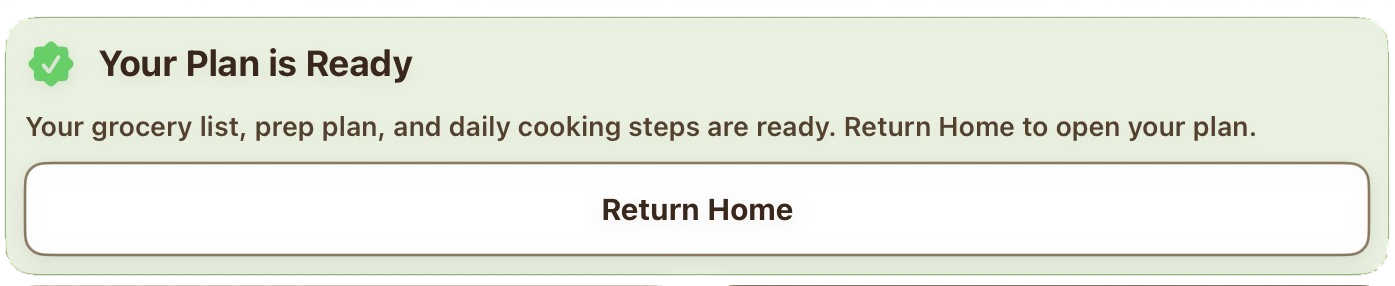
Your completed meal plan is automatically saved.
You can return to it anytime to:
- View your Grocery List.
- Complete Prep Ahead steps.
- Follow Daily Cooking steps.
- Make changes and regenerate your plan.
- Share your meal plan with family and friends.
Coach Tip
Meal plans don't have to follow a traditional week.
You can create plans for:
• Holiday dinners
• Tailgate parties
• Vacation meals
• Cookie exchanges
• Backyard BBQs
• Freezer meals
• Family gatherings
If it involves food, Dine In Time can help organize it.
Chapter 5
Saved Meal Plans
"All of your meal plans in one place."
Every meal plan you create is automatically saved.
Think of Saved Meal Plans as your personal meal planning library.
You can return to any plan at any time to cook, edit, share, or reuse it.
Your Active Meal Plan
Only one meal plan can be Active at a time.
Your Active Meal Plan determines what appears on the Home screen.
The following Home screen buttons always use your Active Meal Plan:
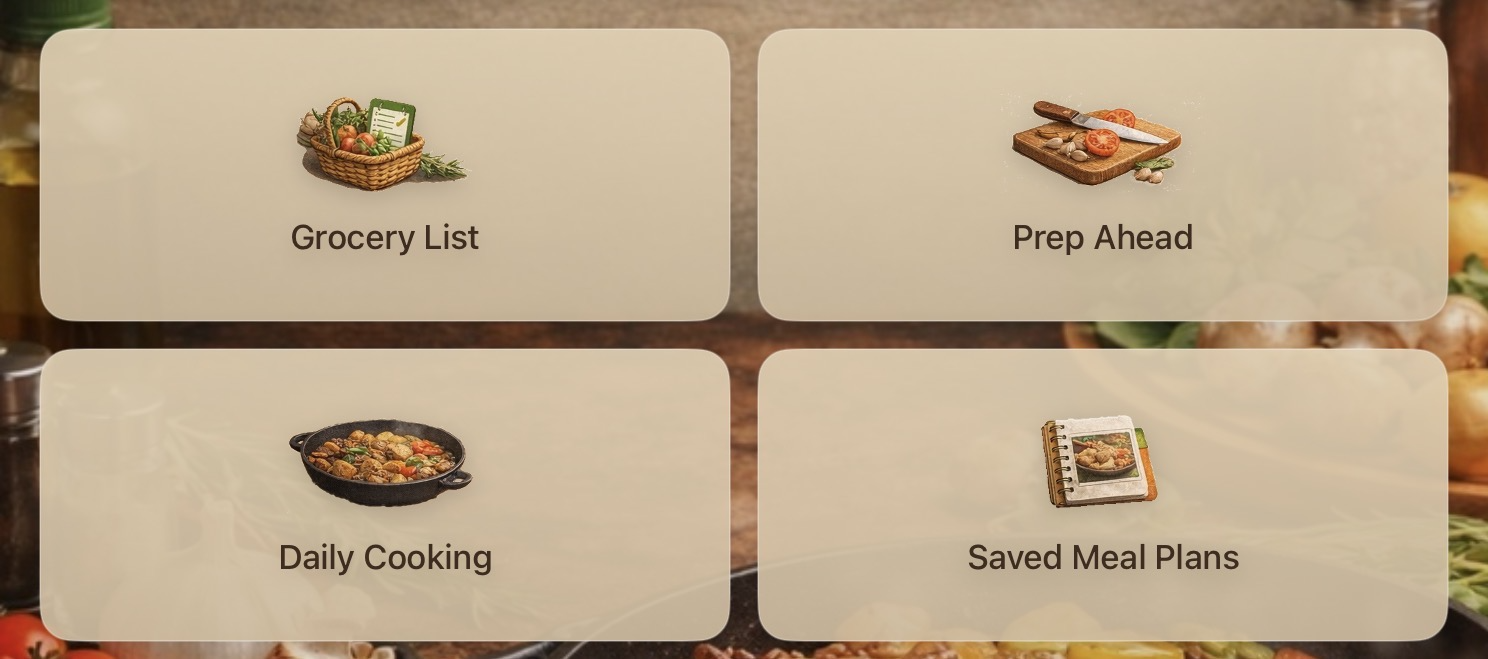
- Grocery List
- Prep Ahead
- Daily Cooking
When you switch your Active Meal Plan, these buttons immediately begin using the newly selected plan.
Selecting an Active Meal Plan
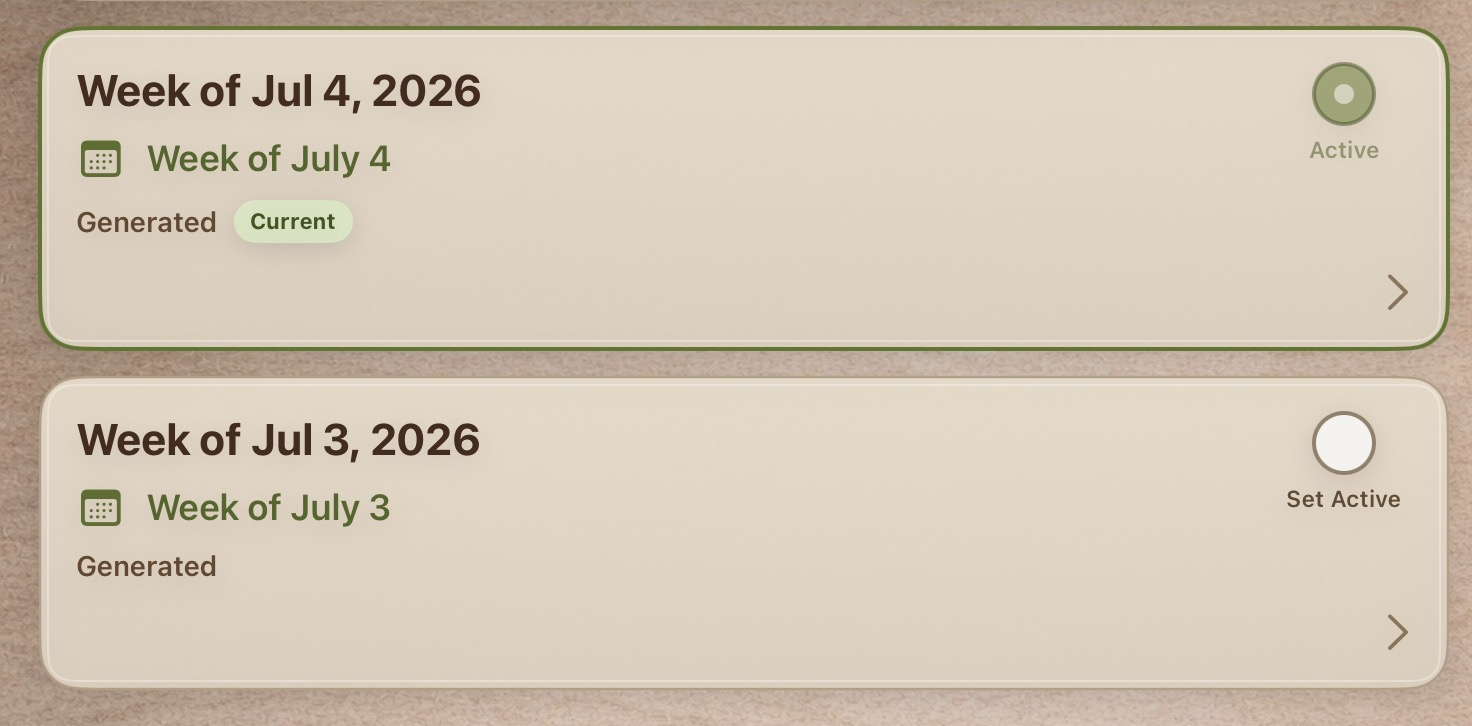
- Open Saved Meal Plans.
- Select the meal plan you'd like to use.
- Tap Set Active.
Your Home screen now reflects that meal plan.
Using a Saved Meal Plan
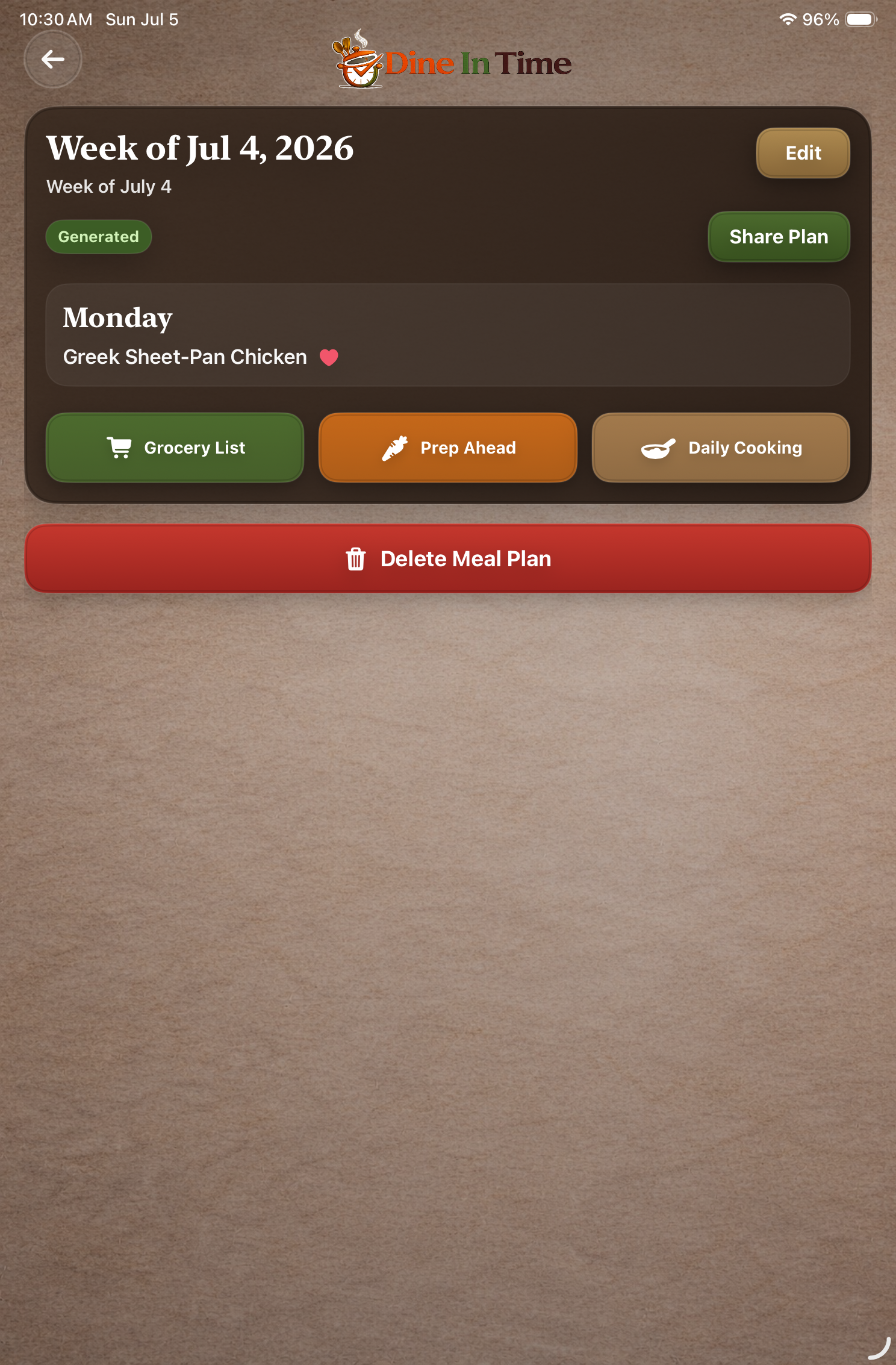
Every Saved Meal Plan includes quick access to:
Groceries
View your shopping list. Send it to Instacart. Take it to the store with you to check off your list.
Prep Ahead
Complete your Prep Ahead steps.
Daily Cooking
Open Daily Cooking steps.
This allows you to jump directly to the part of the meal plan you need.
Editing a Meal Plan
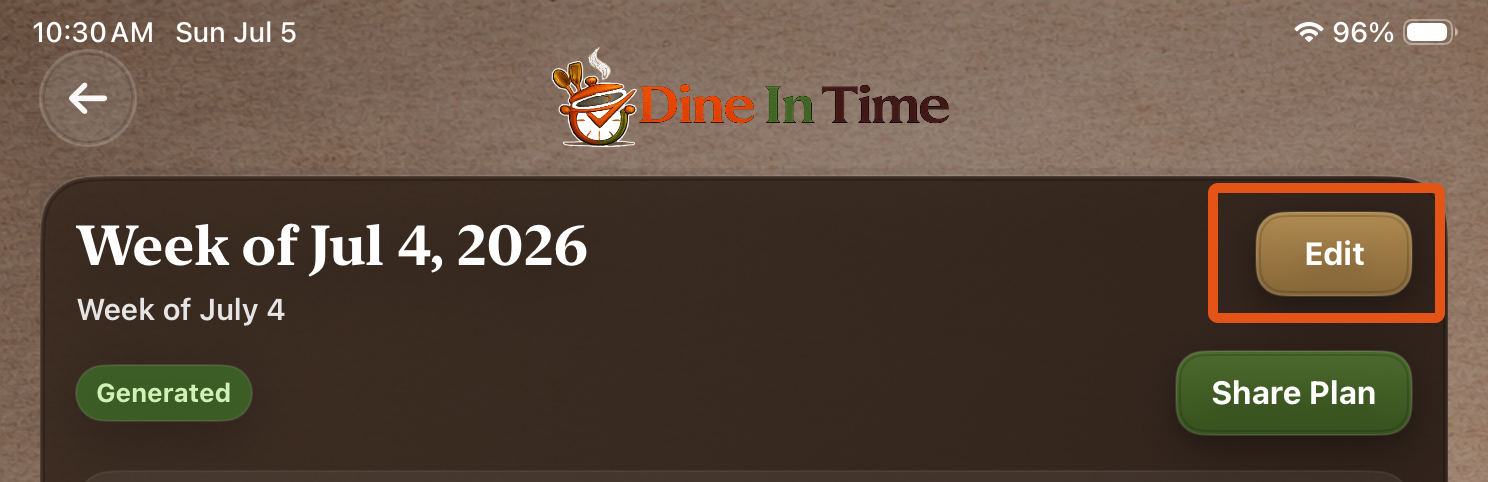
Plans change, and that's okay.
Tap Edit to:
- Add recipes.
- Remove recipes.
- Change meal assignments.
- Regenerate your Grocery List.
- Regenerate your Prep Ahead steps.
- Regenerate your Daily Cooking steps.
Your changes are saved to the meal plan and are immediately available the next time you open it.
Sharing Meal Plans
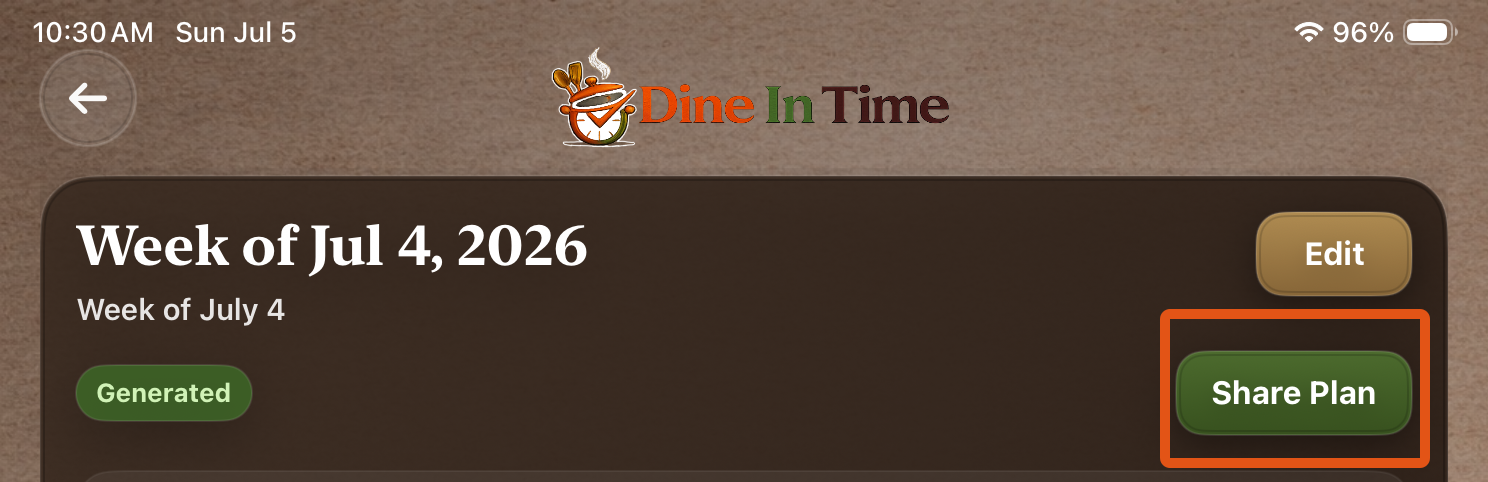
When you're ready, you can share any Saved Meal Plan with family and friends.
Shared Meal Plans include everything needed to recreate the experience.
Coach Tip
The Home screen always works with your Active Meal Plan.
If Grocery, Prep, or Cook doesn't look like what you expected, check which meal plan is currently marked as Active.
Chapter 6
Grocery List
"One shopping list for your entire meal plan."
Once you've generated a meal plan, Dine In Time automatically creates a Grocery List containing the ingredients needed for every recipe in your meal plan.
Instead of switching between multiple recipe websites, everything is organized into a single, easy-to-shop list.
Viewing Your Grocery List
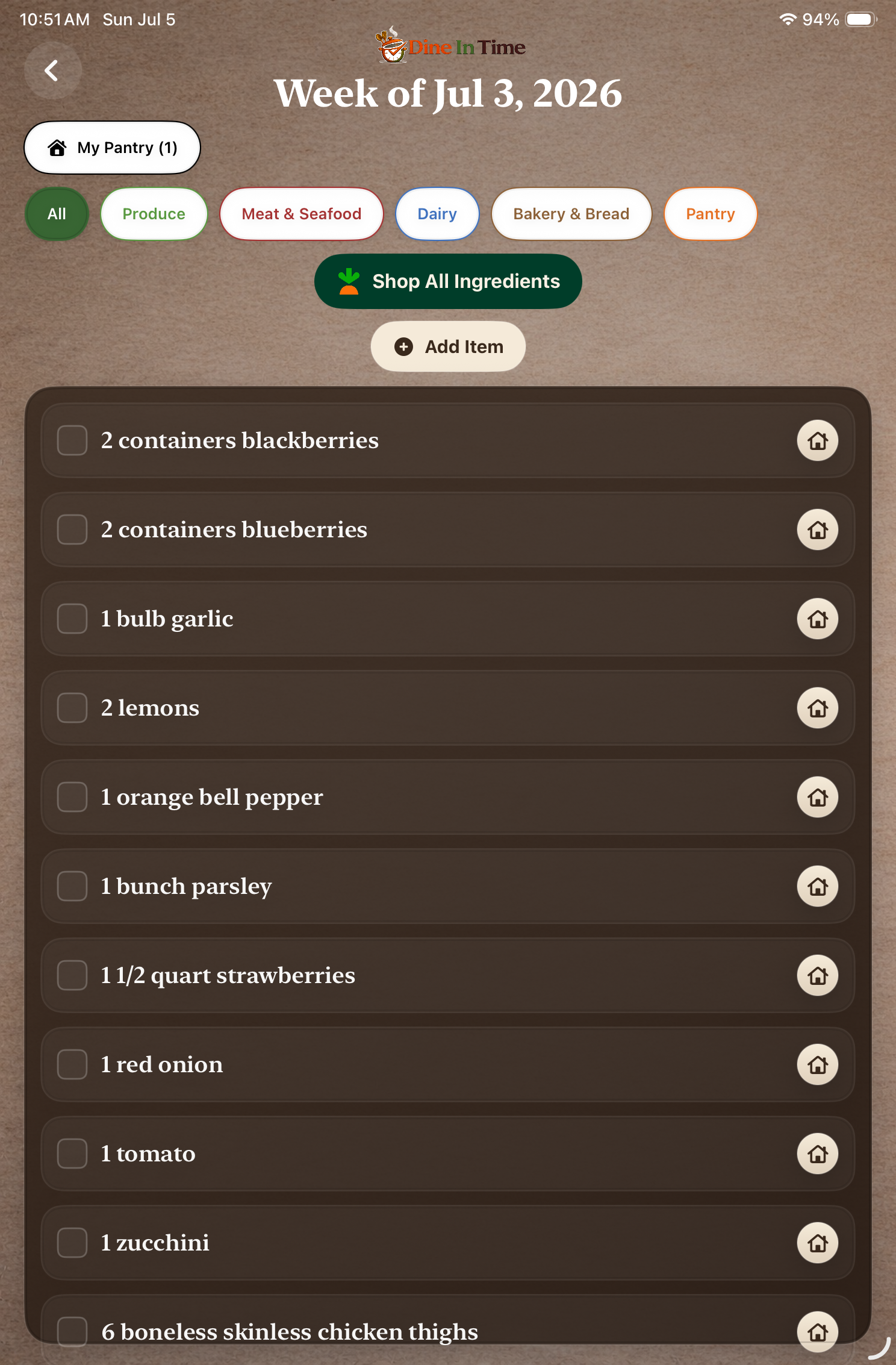
There are two ways to access your Grocery List.
From the Home Screen
Tap Grocery List.
The Grocery button always displays the Grocery List for your Active Meal Plan.
From Saved Meal Plans
- Open Saved Meal Plans.
- Select a meal plan.
- Tap Grocery List.
This allows you to view the Grocery List for any Saved Meal Plan without making it your Active Meal Plan.
Shopping Categories
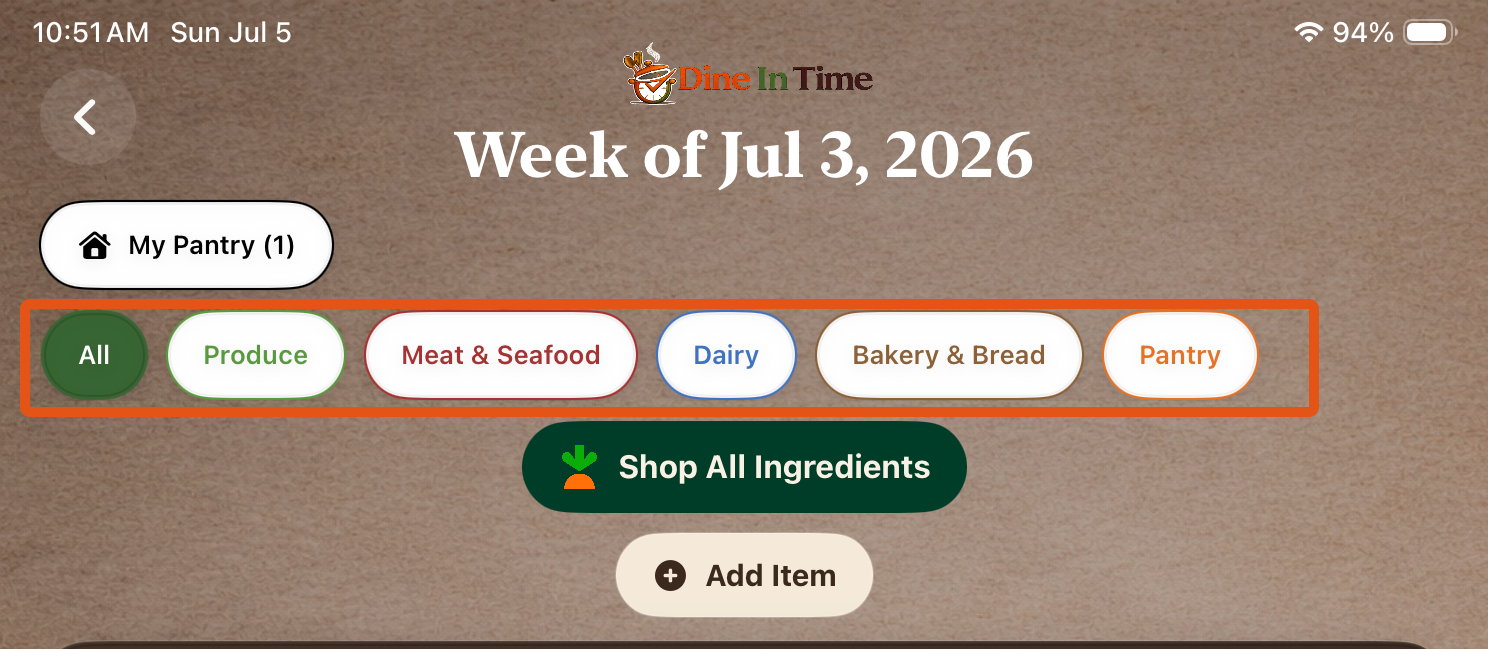
To make shopping easier, ingredients are automatically grouped into familiar grocery store departments.
Examples include:
- Produce
- Meat & Seafood
- Dairy
- Bakery
- Frozen
- Pantry
Grouping similar ingredients together helps reduce unnecessary trips around the store.
Combined Ingredients
If multiple recipes use the same ingredient, Dine In Time combines those quantities whenever possible.
For example:
Instead of seeing:
- 1 onion
- 2 onions
- 1 onion
Your Grocery List may display:
- 4 onions
This helps simplify shopping and reduces duplicate items.
Manual Items
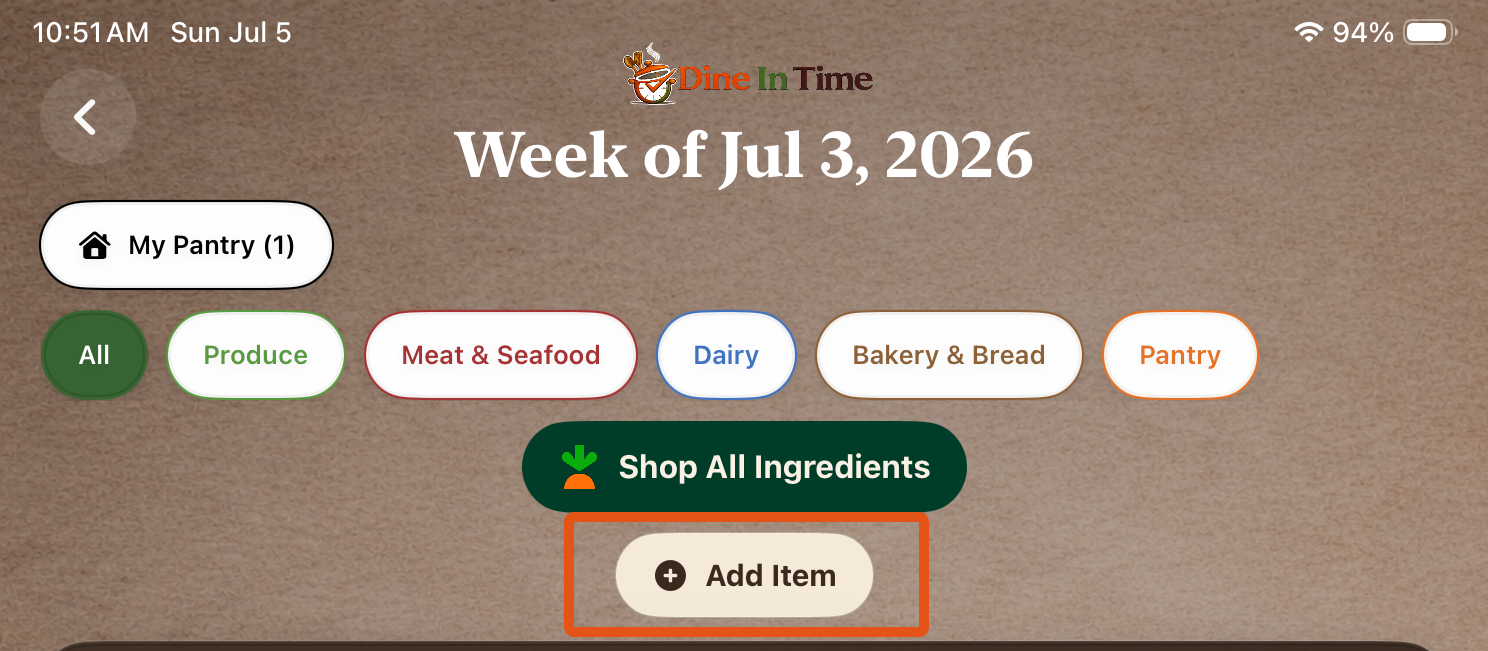
Need to pick up something that isn't part of a recipe?
Tap Add Item to include additional groceries such as:
- Milk
- Bread
- Paper Towels
- Drinks
- Snacks
Manual items are added to the Added Items category and included with the rest of your shopping list.
My Pantry
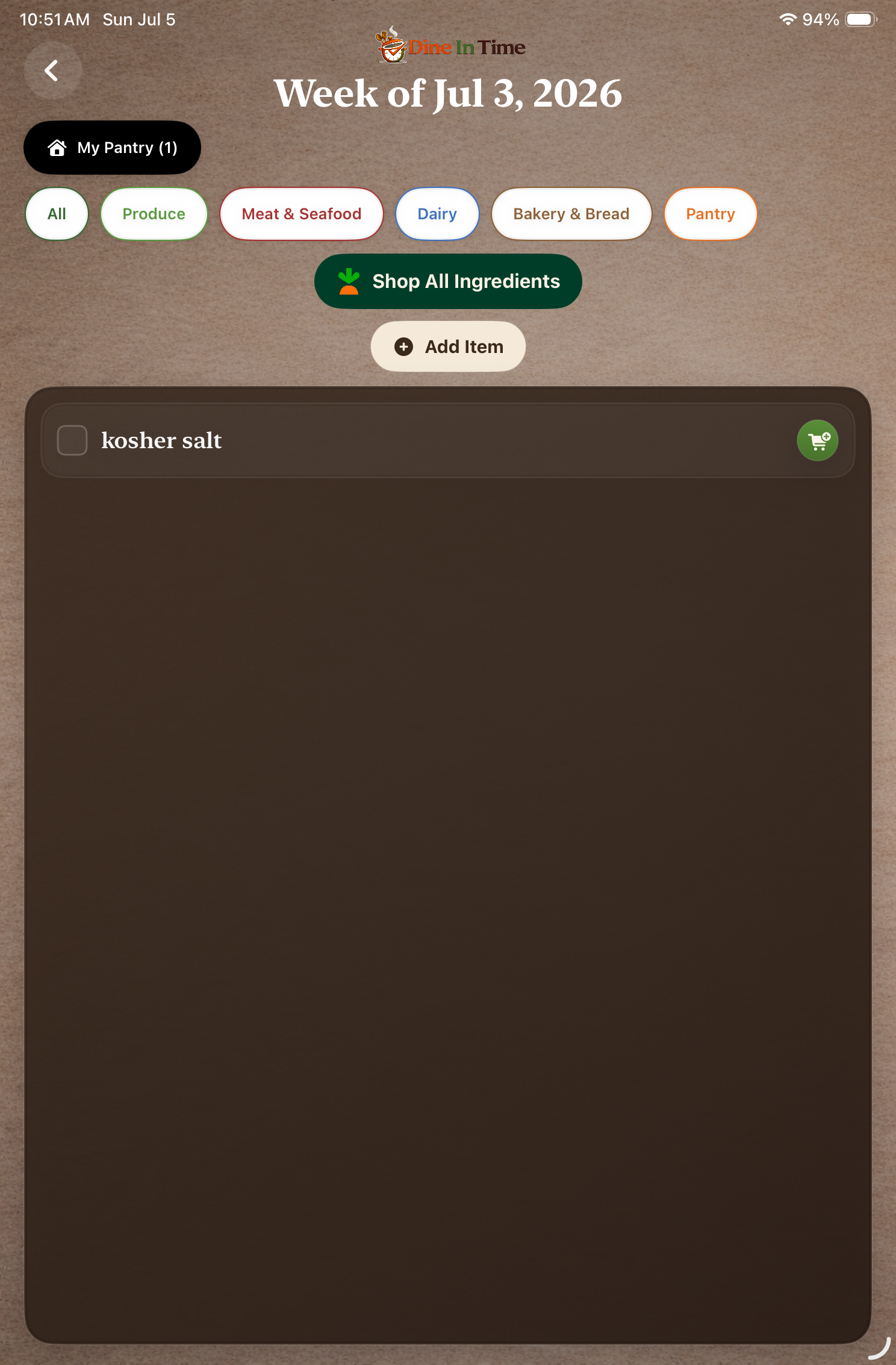
The My Pantry feature lets you identify ingredients that you normally keep on hand.
Items stored in My Pantry are automatically excluded from your Grocery List, making your shopping list shorter and more accurate.
You can update your pantry at any time from the Grocery screen.
Ingredients to Avoid
If you've configured Ingredients to Avoid in Settings, those ingredients are automatically flagged on your Grocery List whenever possible.
This makes it easy to identify ingredients you'd prefer to avoid or substitute while reviewing your shopping list.
Shopping with Instacart
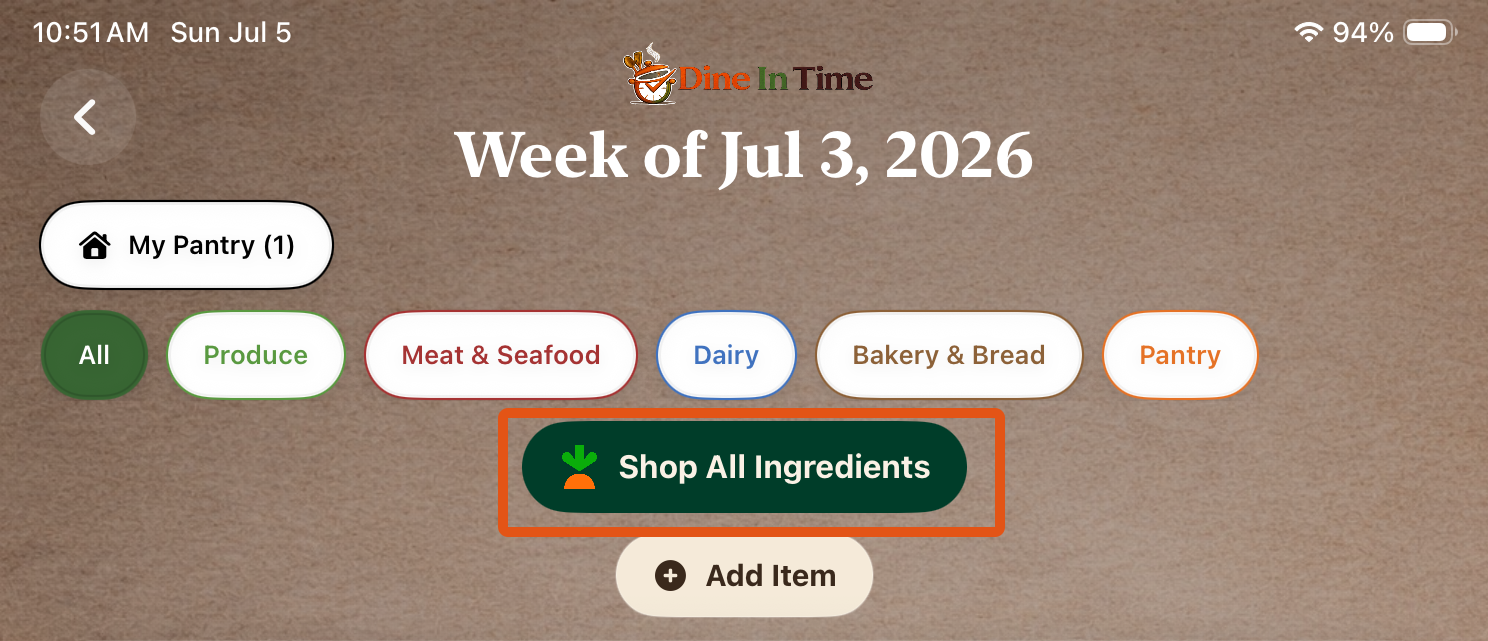
Prefer grocery delivery or pickup?
Tap Shop All Ingredients to send your Grocery List directly to Instacart.
You can review your cart, make adjustments, and choose delivery or pickup using your existing Instacart account.
If not, you can take your list to the store with you to shop and check off items as you place them in your cart.
Coach Tip
As you create Grocery Lists, you can still add items to My Pantry.
Once it's configured, future Grocery Lists become even more accurate because commonly stocked ingredients won't appear every time you cook.
Chapter 7
Prep Ahead
"Spend a little time now. Save a lot of time later."
Prep Ahead helps you complete meal preparation before your busy week begins.
Instead of repeating the same prep work every evening, Dine In Time combines similar tasks into one organized preparation plan.
Viewing Prep Ahead steps
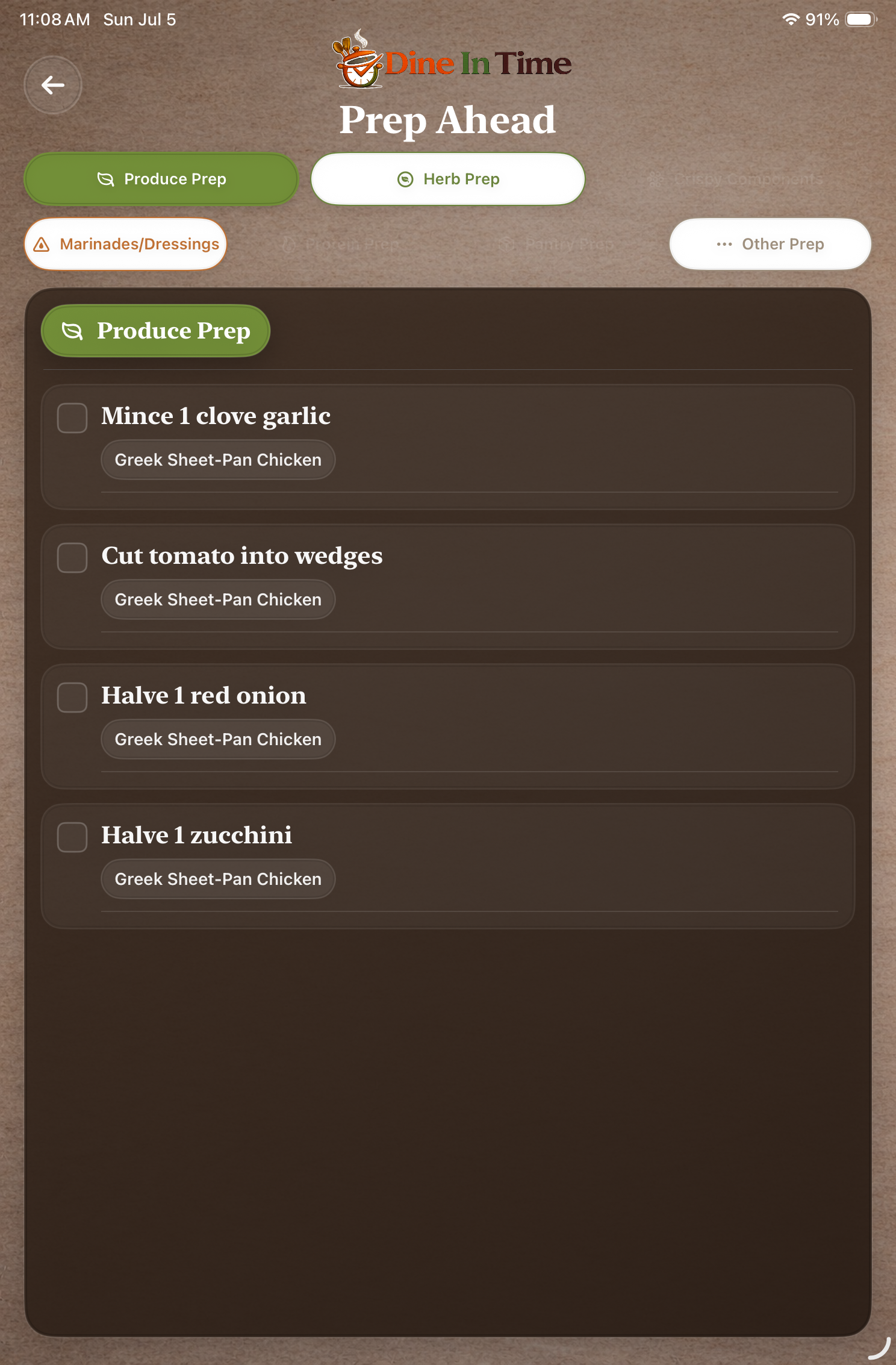
There are two ways to access Prep Ahead.
From the Home Screen
Tap Prep Ahead.
The Prep Ahead button always displays the Prep Ahead steps for your Active Meal Plan.
From Saved Meal Plans
- Open Saved Meal Plans.
- Select a meal plan.
- Tap Prep Ahead.
What You'll Find
Prep Ahead steps combine preparation tasks across all recipes in your meal plan whenever possible.
For example, if one recipe requires:
- 1 chopped onion
and another recipe requires:
- 1 chopped onion
Prep Ahead combines those into a single task:
Chop 2 onions
Instead of repeating the same preparation multiple times throughout the week, you complete it once before you begin cooking.
Prep Ahead may include tasks such as:
- Chopping/slicing/dicing vegetables
- Preparing sauces and marinades
- Cooking grains
- Marinating proteins
Each task is organized so it only needs to be completed once whenever possible.
Recipe Badges
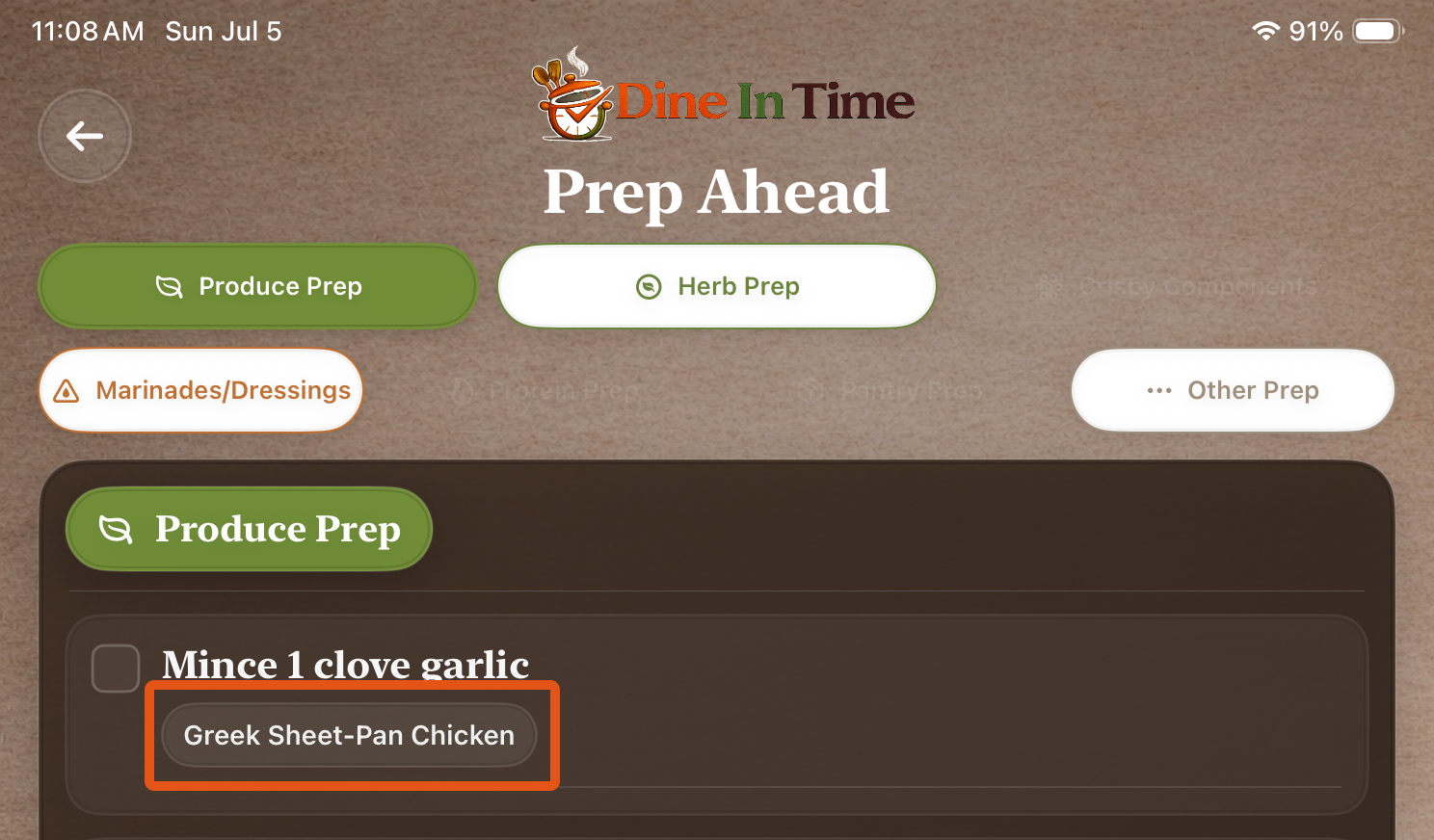
Each Prep Ahead task includes recipe badges showing which recipes use that preparation.
These badges are active links.
Tap a recipe badge at any time to open the original recipe if you need additional instructions or clarification.
Check Off Completed Tasks
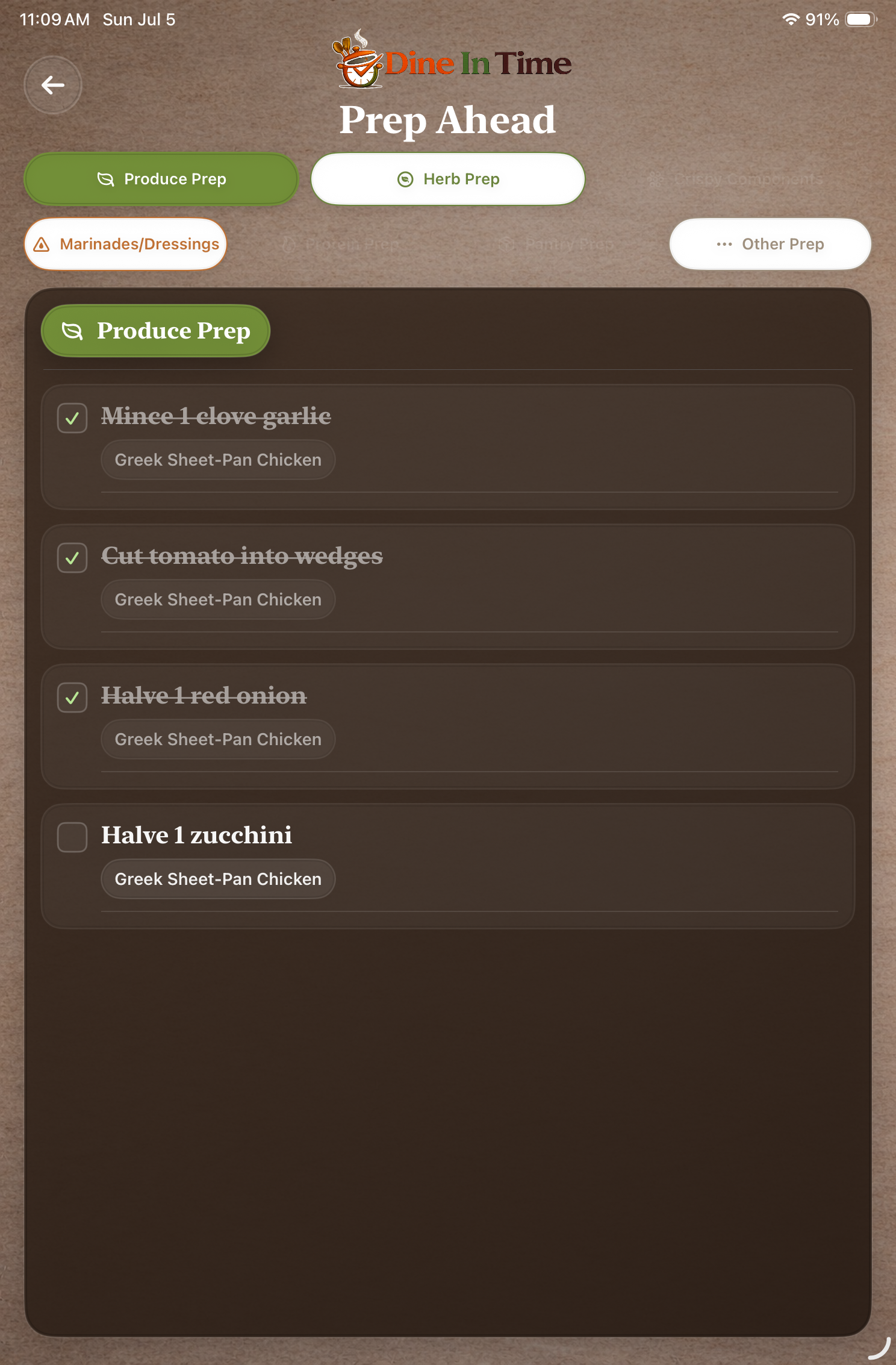
As you complete each task, tap the checkbox beside it.
Your progress is automatically saved, allowing you to stop and continue whenever it's convenient.
Why Prep Ahead Matters
Completing Prep Ahead steps before the week begins makes Daily Cooking steps faster and less stressful.
Many weeknight meals can be prepared in significantly less time because much of the work has already been completed.
Coach Tip
Many users complete Prep Ahead steps on Sunday afternoons.
A little preparation at the beginning of the week often makes every dinner easier.
Chapter 8
Daily Cooking
"Everything you need for today's meal."
Daily Cooking brings together the instructions for every recipe scheduled for a particular day.
Instead of opening multiple recipe websites, everything is organized into one easy-to-follow cooking guide.
Viewing Daily Cooking steps
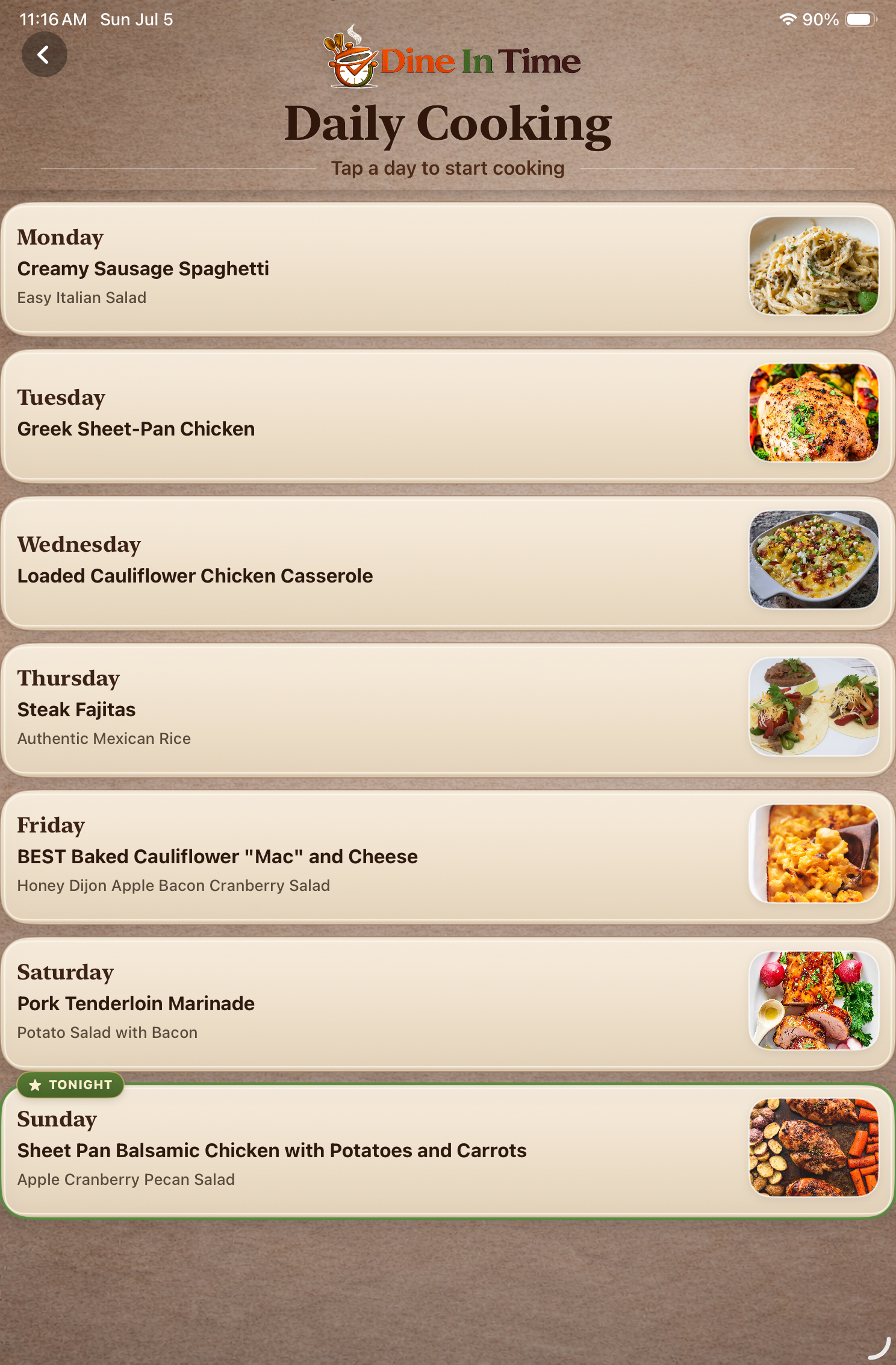
There are two ways to access Daily Cooking steps.
From the Home Screen
Tap Daily Cooking.
The Daily Cooking button always displays today's cooking instructions for your Active Meal Plan.
From Saved Meal Plans
- Open Saved Meal Plans.
- Select a meal plan.
- Tap Daily Cooking.
Daily Cooking Includes
For each day you'll see:
- Recipes scheduled for that day
- Ingredients needed today
- Prep Ahead reminders
- Step-by-step cooking instructions
Everything needed for today's meals is available in one place.
Already Prepped
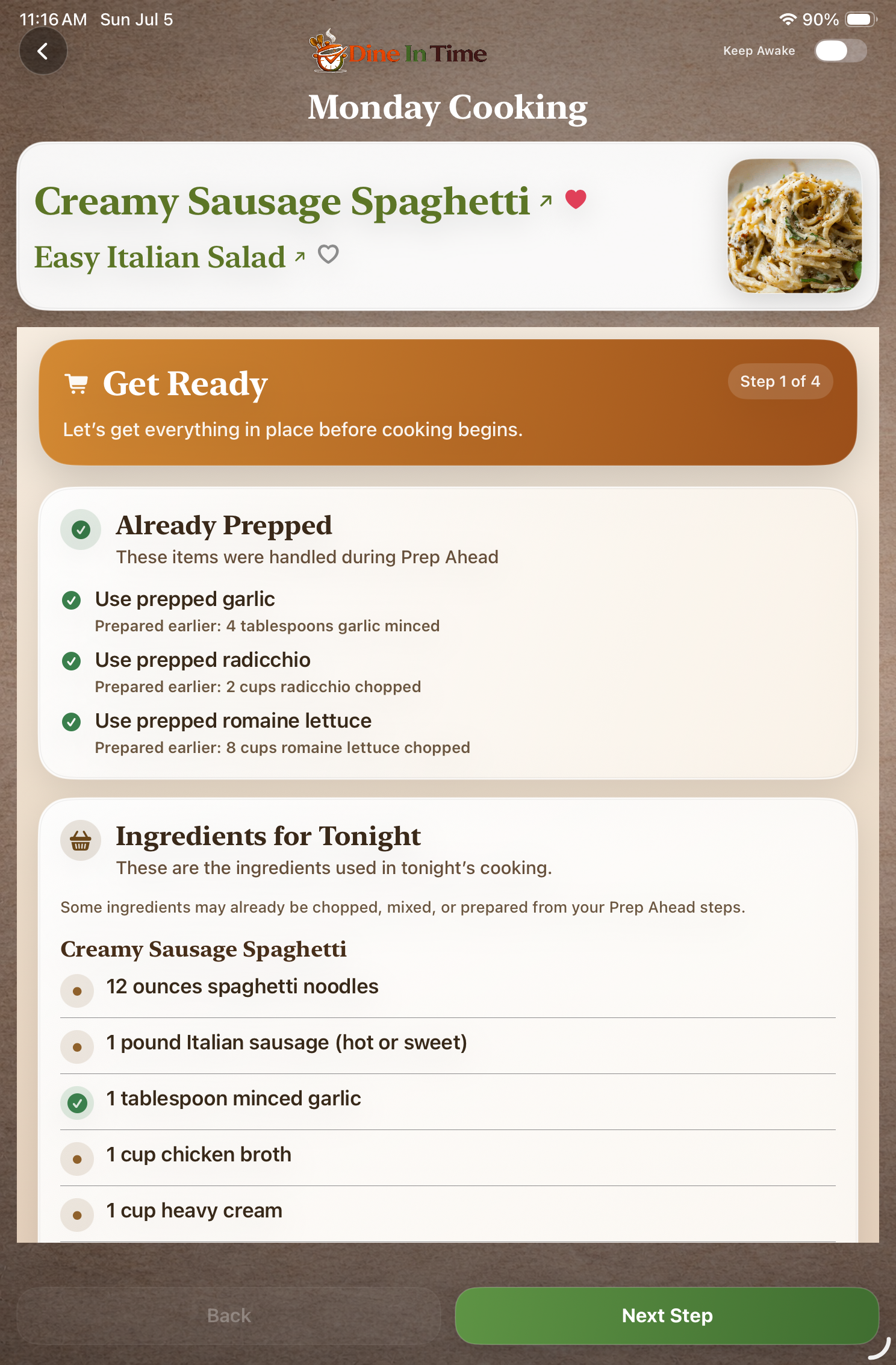
Ingredients completed during Prep Ahead are clearly identified with an Already Prepped indicator.
This helps prevent repeating work you've already completed earlier in the week.
Multiple Recipes
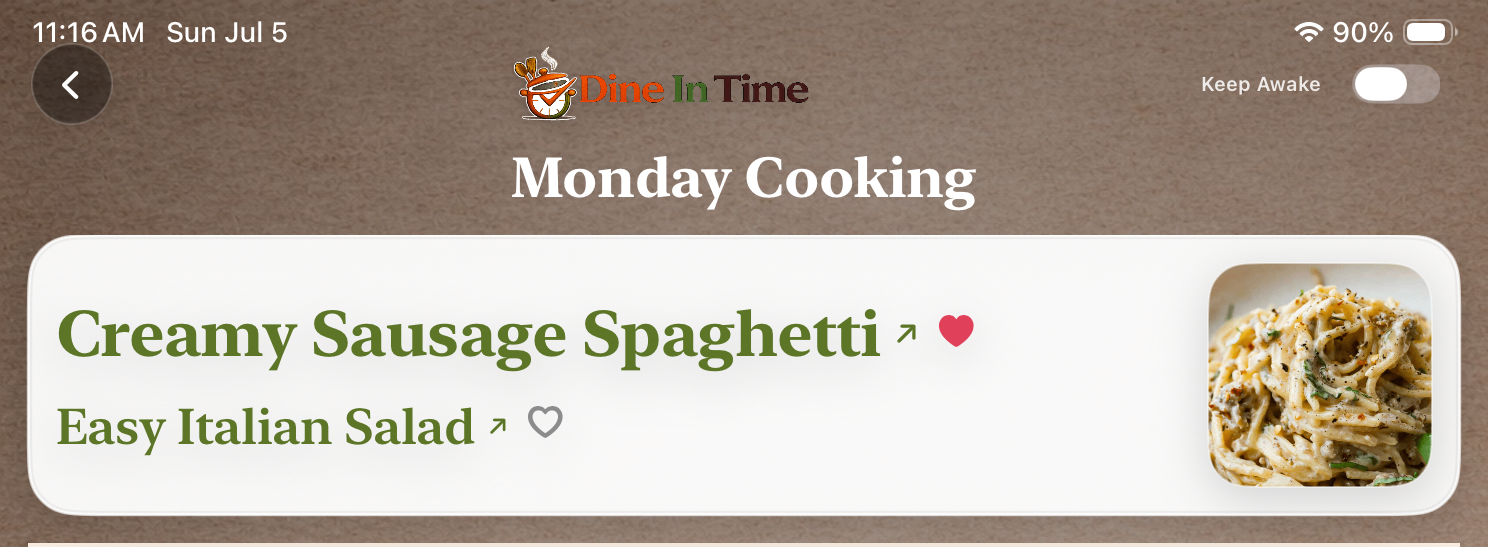
If you've scheduled more than one recipe for a day, Daily Cooking combines them into a single cooking workflow.
This makes it easier to prepare complete meals without constantly switching between recipes.
Coach Tip
Before you begin cooking, take a quick look through the entire Daily Cooking guide.
Knowing what's coming next helps meals come together more smoothly.
Chapter 9
Shared Meal Plans
"Share your favorite meal plans with family and friends."
Once you've created a meal plan you love, you can easily share it with others.
Whether you're sending next week's dinners to a family member, sharing holiday recipes, or recommending a favorite creator's meal plan, Dine In Time makes sharing simple.
Sharing a Meal Plan
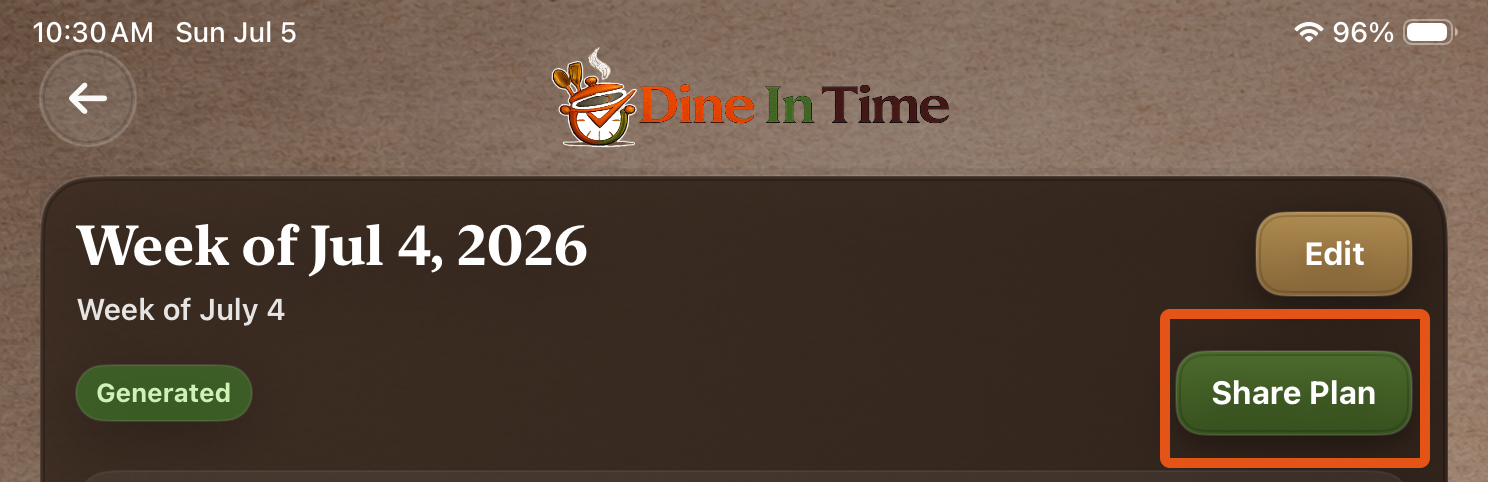
Every Saved Meal Plan includes a Share button.
To share a meal plan:
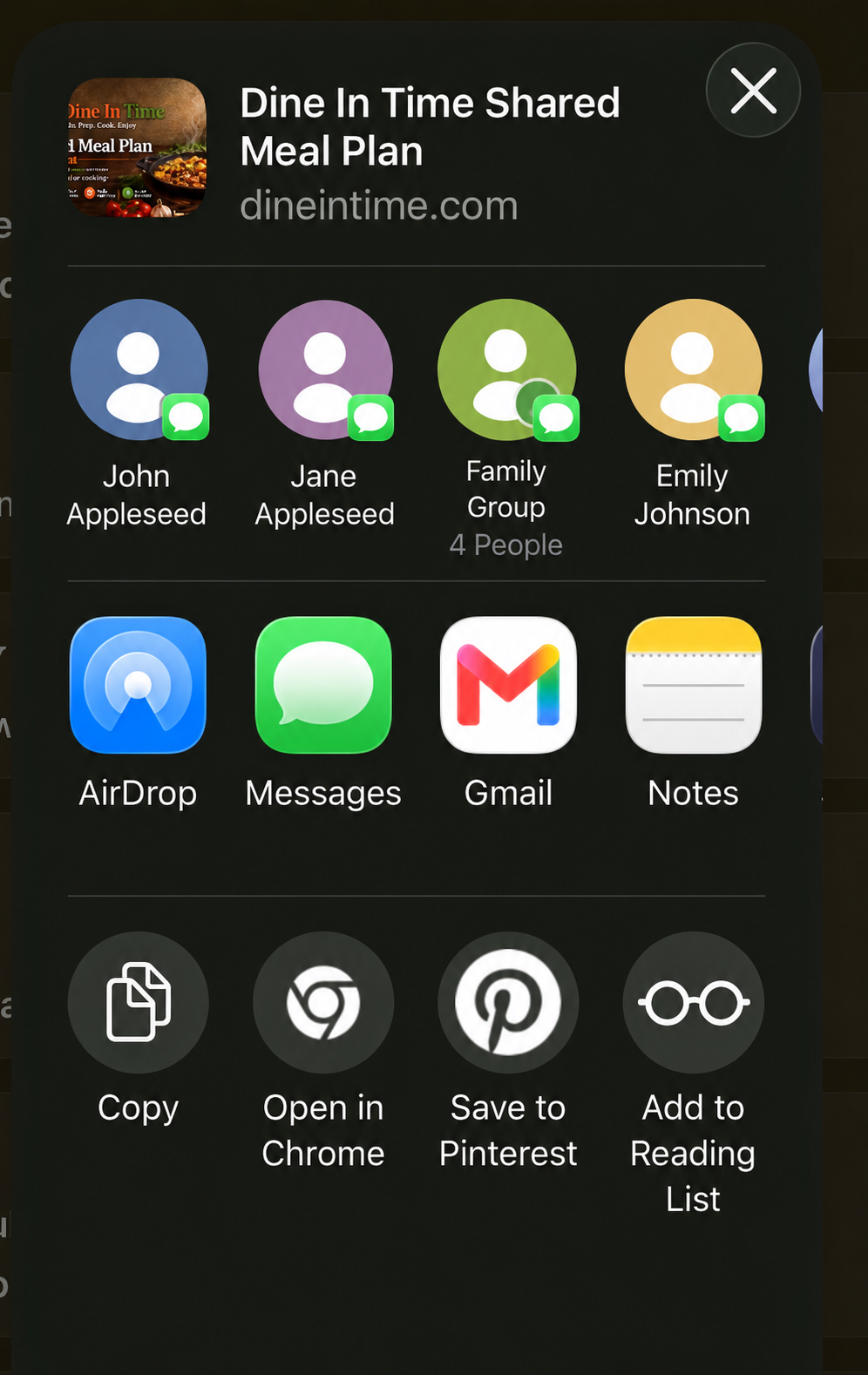
- Open Saved Meal Plans.
- Select the meal plan you'd like to share.
- Tap Share.
- Choose how you'd like to send the link.
- Text messages
- AirDrop
- Any app that supports sharing
The recipient receives a Dine In Time sharing link.
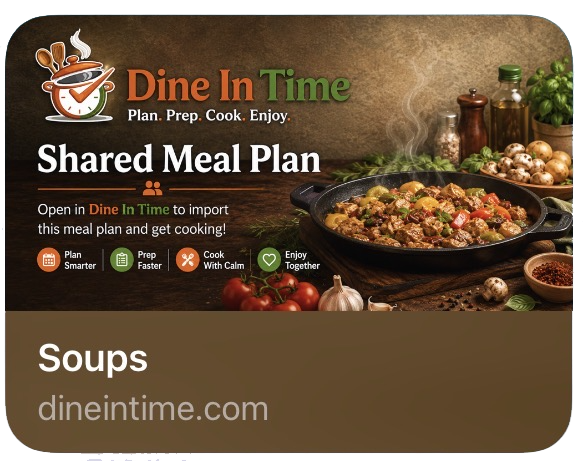
Importing a Shared Meal Plan
When someone shares a meal plan with you:
- Tap the shared Dine In Time link.
- The plan opens in Dine In Time and is automatically added to Saved Meal Plans.
Once imported, every shared plan becomes part of your personal meal plan collection.
Meal Plan Showcase
The Meal Plan Showcase works just like Shared Meal Plans.
The only difference is that they're curated and available directly within Dine In Time.
Many users begin with a plan from the Meal Plan Showcase, customize it to their family's tastes, and then share their own version with friends and family.
Making It Your Own
Every meal plan is fully editable.
After adding a shared plan you can:
- Add recipes
- Remove recipes
- Reorder meals by day of the week
- Generate updated Grocery Lists
- Generate updated Prep Ahead steps
- Generate updated Daily Cooking instructions
Coach Tip
A shared meal plan is just a starting point.
Don't hesitate to customize it by swapping recipes, adding family favorites, or removing meals that don't fit your schedule.
Chapter 10
Settings
"Customize Dine In Time to fit your kitchen."
The Settings screen allows you to personalize Dine In Time and access helpful resources.
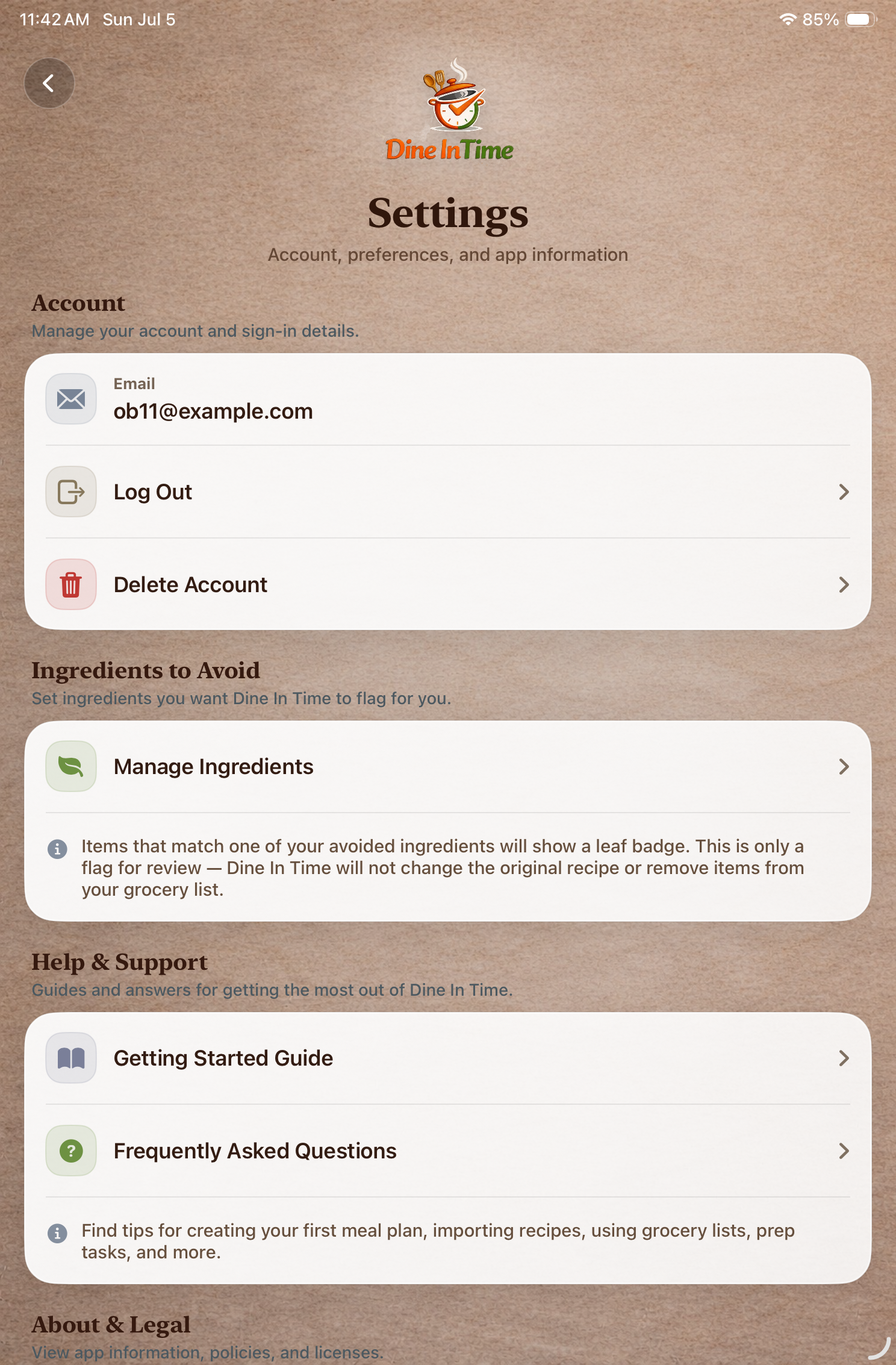
From Settings you can identify ingredients you'd prefer to avoid, learn more about the app, and access support whenever you need it.
Ingredients to Avoid
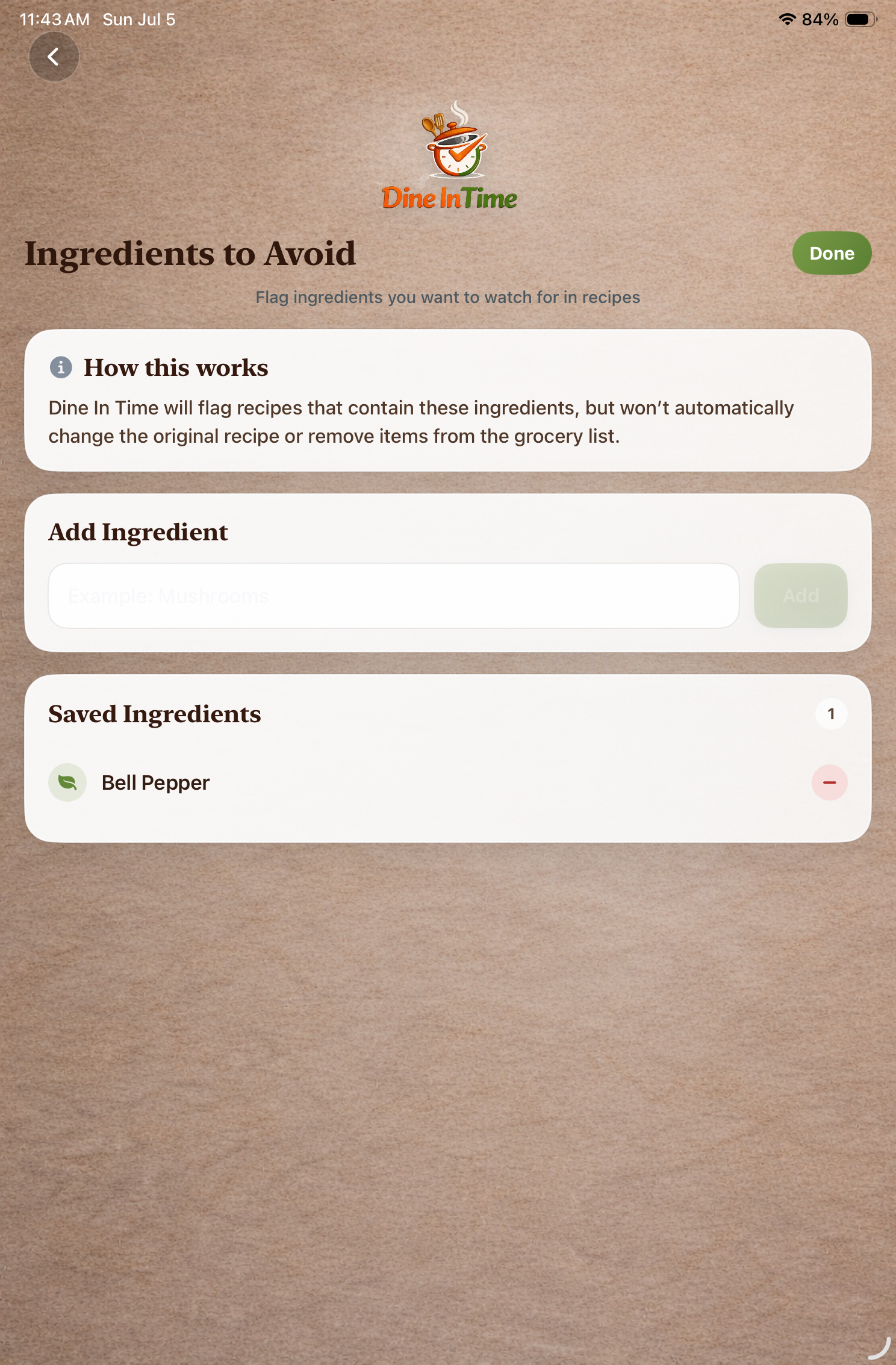
If there are ingredients your family doesn't eat or that you'd prefer to substitute, you can add them to Ingredients to Avoid.
These ingredients are automatically flagged throughout your Grocery List whenever possible, making them easy to identify before shopping.
To manage Ingredients to Avoid:
- Open Settings.
- Tap Ingredients to Avoid.
- Add or remove ingredients as needed.
Getting Help
Need a refresher?
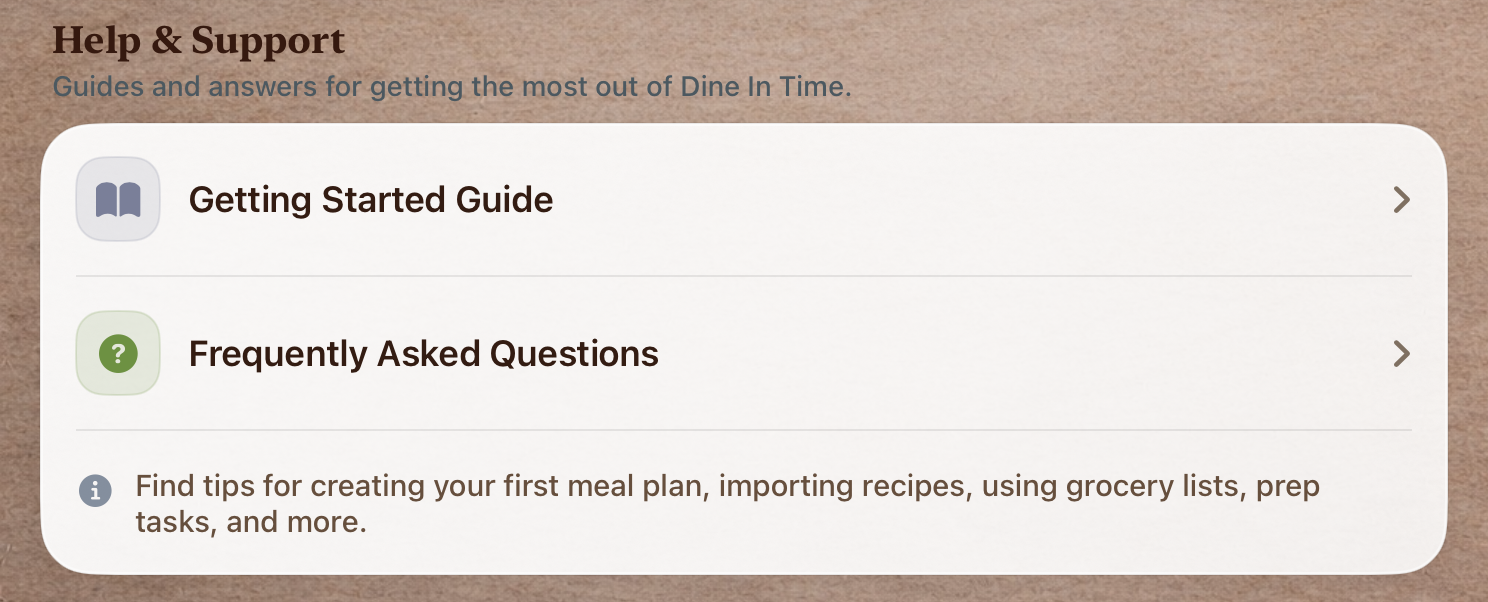
The Getting Started Guide is always available from Settings and provides detailed information about every feature in Dine In Time.
Whether you're learning the app for the first time or looking up a specific feature, the guide is a great place to start.
Frequently Asked Questions answers common questions about:
- iOS settings
- Recipe websites
- Sharing Meal Plans
- Troubleshooting
- Other frequently asked questions
If you can't find the answer you're looking for you may email us directly at support@dineintime.com
About Dine In Time
The About section includes information about Dine In Time, version information, and links to our Privacy Policy and Terms of Service.
Coach Tip
If there are ingredients your family doesn't eat or that you regularly substitute, take a few minutes to configure Ingredients to Avoid.
Those ingredients will be highlighted on future Grocery Lists, making shopping and meal planning even easier.
YOUR RECIPES. YOUR PLAN. YOUR TABLE.
It's not about planning meals.
It's about building a collection to help you save time and money.
When most people think about meal planning, they imagine sitting down every Sunday trying to answer the same question:
"What should we eat this week?"
That question can feel overwhelming.
You search for recipes. You forget where you found one. You remember something your family liked six months ago—but can't remember the website.
You start over.
Every week.
Dine In Time was designed to solve a different problem.
Instead of asking you to plan your week...
It helps you build a recipe collection that grows over time.
Every Recipe Has a Story
Every recipe begins the same way. You discover something that looks delicious. You save it.
Maybe you cook it next week. Maybe next month. Maybe you save it for the holidays.
Some recipes become favorites. Others become traditions.
Eventually, your collection begins to tell the story of your family's table.
Not someone else's. Yours.
Meal Planning Gets Easier
The more recipes you collect, the easier meal planning becomes. You're no longer searching the internet every week. You're choosing from recipes you already know.
Recipes your family has enjoyed. Recipes you've trusted before and adding in a few new ones to try. Recipes that fit your life.
Planning stops feeling like work.
There Are No Rules
A meal plan doesn't have to start on Monday. It doesn't have to end on Friday. It doesn't even have to be a week.
Dine In Time can help you organize any gathering where food brings people together.
If you're organizing meals, Dine In Time can help.
Your Family Cookbook
Over time, something unexpected begins to happen. Your meal plans become more than plans. Your Favorites become more than bookmarks. Your saved recipes become more than links.
Together, they become your family's cookbook. A collection built one recipe at a time. Filled with the meals your family actually loves.
Ready whenever you need them.
The Recipe Journey
Every recipe follows the same simple journey.
That's the Dine In Time Recipe Journey.
Simple. Natural. Always growing.
One Last Thought
The goal was never to build another recipe app. There are already plenty of places to find recipes. The goal was to build a place where recipes become memories. Where family favorites aren't lost. Where holiday traditions are easy to revisit. Where weeknight dinners become less stressful. And where every meal you cook today makes next week's meal planning just a little easier.
I built Dine In Time because I wanted meal planning to feel less like a chore and more like something that naturally grows alongside your family. My hope is that every recipe you save, every meal plan you create, and every dinner you share helps make time around your table a little easier and a little more enjoyable.
Thank you for choosing Dine In Time.

Mike Proctor
Founder, Dine In Time

Reference